

Your Jimdo Creator site has grown with you. You’ve added pages over the years, rearranged the navigation, tweaked the layout until it felt right, and kept the content fresh.
Then a customer emails you in Spanish. Another one asks if your site comes in German.
Doing that by hand on Jimdo means building a second copy of your site inside the first one. A new branch in the navigation for each language. Every page duplicated, translated, and pasted in. And every future edit made twice, three times, or more.
Your site deserves better than a navigation menu that doubles with every language.
Meet Universally for Jimdo Creator!
Starting today, you can turn your Jimdo Creator site into a multilingual one with a single line of code. Universally translates your pages with context-aware AI in 110+ languages, while your site stays exactly as you built it.
Here’s what that looks like.
Change It Once in Jimdo, and Every Language Follows
Keeping translations current is where most multilingual sites fall behind.
You update your prices, add a new service page, or rewrite your About section. With hand-made language copies, each of those changes means another round of finding the right page in every language and redoing the work. Skip one, and a visitor reading in French sees last year’s prices.
With Universally for Jimdo Creator, you just edit your site in Jimdo the way you always have. New and changed text on your public pages is detected and translated automatically.
You do the updating once. Universally handles the rest.
Setup Takes About as Long as Reading This Section
First, create a project in your Universally dashboard and choose Jimdo Creator as your platform.
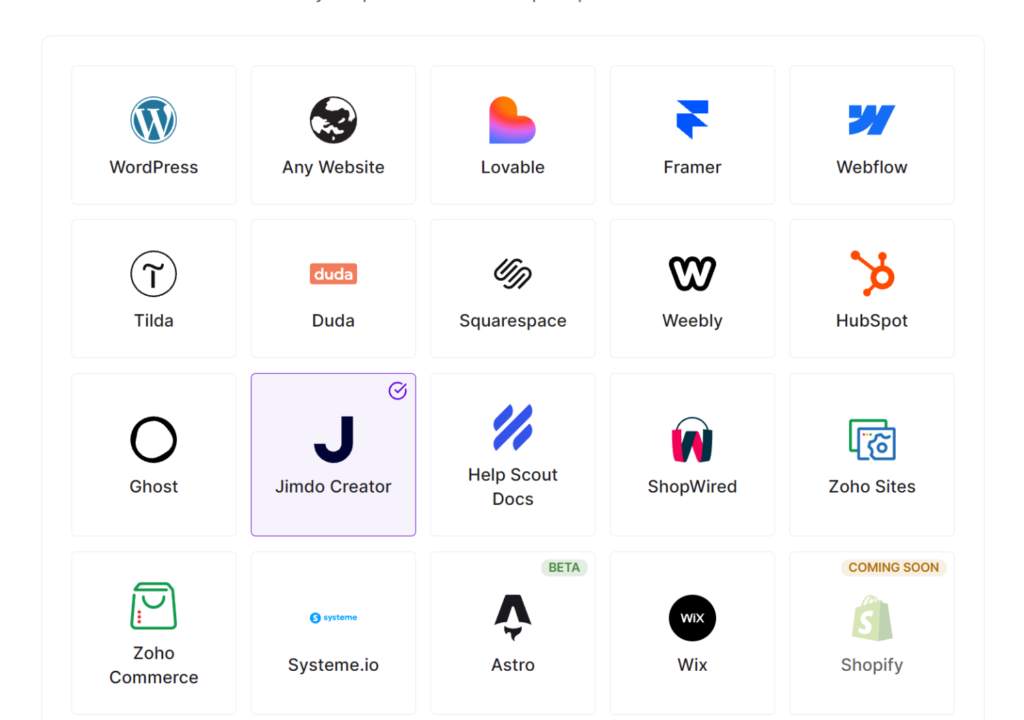
Before you touch your site, Universally shows you a preview of your own Jimdo pages in another language, so you can see the result first.
Next, copy the script tag Universally gives you. It will look something like this:
<script src="https://scripts.universally.com/p/YOUR_PUBLIC_KEY/s.js" async></script>From here, go to Menu » Settings » Edit Head in Jimdo Creator and open the Website tab. Paste the line and save.
The Website tab loads the script on every public page, while the Pages tab only covers individual pages, so make sure you’re on the right one.
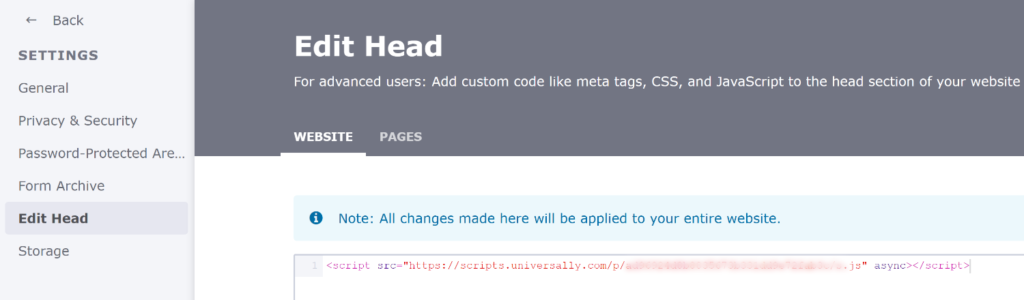
That’s it! Pick your languages in Universally, and your translations go live.
Note: These steps apply to Jimdo Creator, not the newer Jimdo Website Builder. Choose the Website tab in Edit Head so the script loads on every public page; the Pages tab only covers individual pages.
Fine-Tune Any Translation Right on Your Page
AI translation handles the heavy lifting. When you want a line to sound a certain way, you have the final word.
With the Visual Editor, you can click a headline, button, or paragraph on your live Jimdo site and change its translation in place, with your real design in front of you.
Glossary rules keep your business name and key terms consistent in every language, and you can always review or edit any string from your Universally dashboard.
Every language sounds like you, not like a rough draft.
Ready to Open Your Jimdo Site to the World?
That next email in Spanish doesn’t have to turn into a weekend of copying pages.
Universally for Jimdo Creator is available now!
Create your project, paste one line into your site’s head, and start welcoming visitors in 110+ languages.
Get started with Universally for free!
Building with Jimdo Creator? We’d love to hear how Universally works on your site. Send us your questions, bug reports, or feature ideas through our contact page.


Add a Comment