
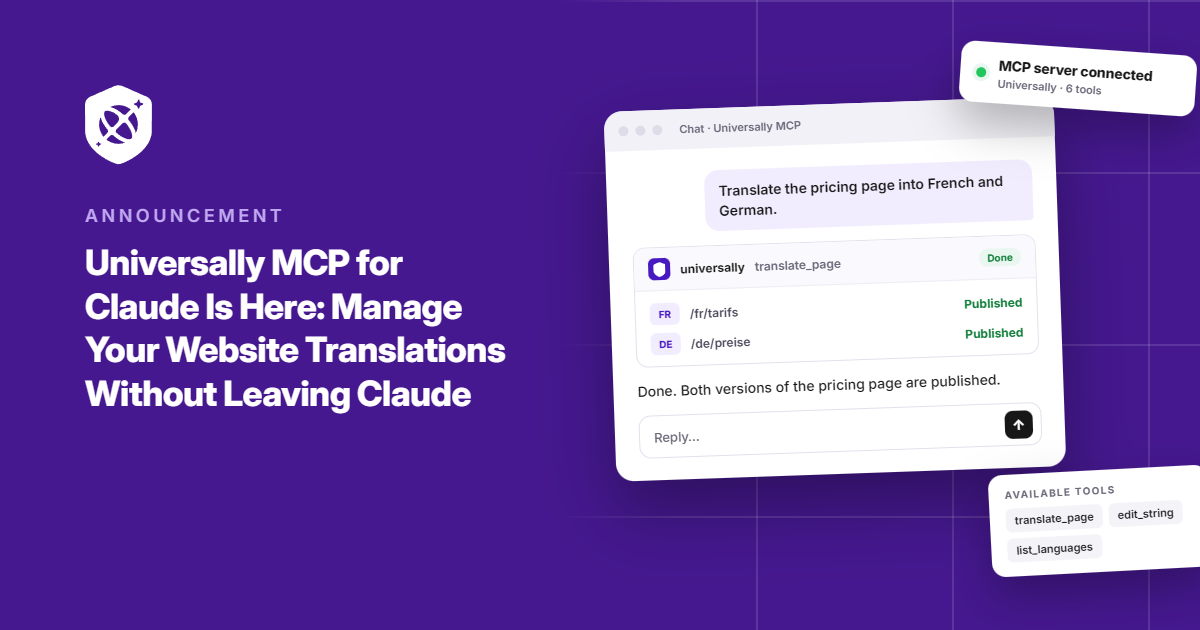
You’re in Claude, planning your website’s German launch. You want to check whether German is enabled, see how much of your word allowance you’ve used, and maybe fix a translation while you’re at it.
Until now, that meant leaving the conversation, opening Universally, finding the right workspace, and digging around for answers.
Not anymore.
We’re excited to introduce Universally for Claude, now available in the Claude connector directory.
Connect your Universally workspace, and Claude can answer questions about your multilingual site, find specific translations, and even make changes when you give it permission. No more switching between tools for every quick check or small fix.
Think of it as bringing your Universally workspace into the conversation, so you can spend less time navigating dashboards and more time getting things done.
Here’s a closer look at our new MCP.
Your Universally Workspace, Just a Question Away
Need to check which languages are live? Looking for a particular translation? Wondering which pages are getting the most translation requests?
Just ask Claude.
Once connected, Claude can read your workspace settings, plan and usage limits, supported languages, translated strings, glossary rules, and recent activity from the last 24 hours.
For example, you could ask:
- “Which languages are currently enabled on my site?”
- “How much of my word allowance have I used this month?”
- “Find every Spanish translation that mentions free shipping.”
- “Which URLs received the most translation requests in the last 24 hours?”
Claude can retrieve the information and bring it straight into your conversation, without you having to hunt for it yourself.
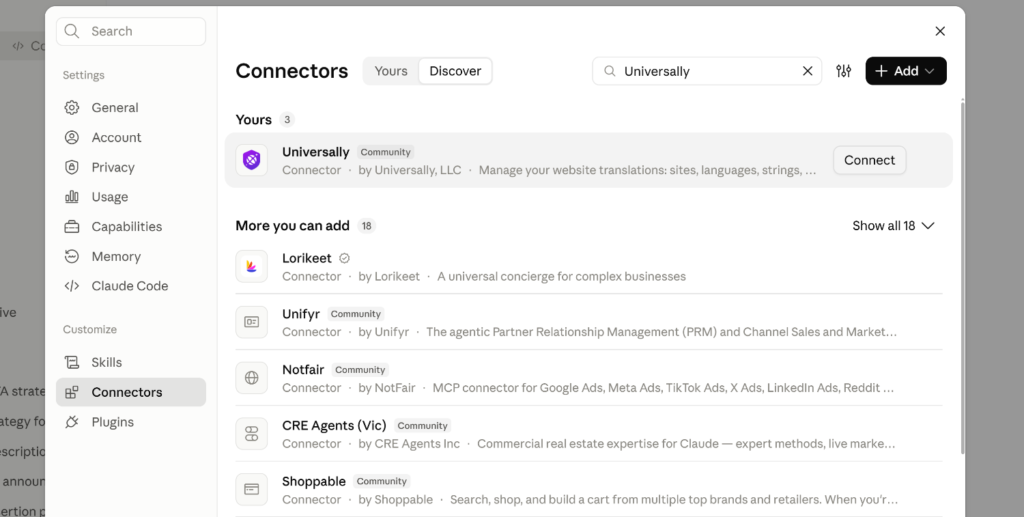
Ready to try it? Open Settings → Connectors in Claude, find Universally, and connect your account.
You’ll sign in to Universally, select the workspace Claude should access, and choose whether to allow changes. Your connection starts in read-only mode by default, so you can begin by asking questions without giving Claude permission to edit anything.
Using Claude Code instead? You can connect through your terminal with:
claude mcp add --transport http universally https://mcp.universally.com/platform
Then sign in through /mcp.
Our guide to connecting Universally to Claude walks you through the setup.
From Finding a Translation to Fixing It, Right There in the Chat
Getting answers is useful. Being able to act on them without switching tools is where things get even more interesting.
Say you’re reviewing your French homepage and notice that a call-to-action doesn’t quite sound right. Instead of opening Universally, searching for the string, and editing it yourself, you can ask Claude to find the translation, show you the current wording, and update it.
The same goes for other everyday translation tasks. With changes enabled, Claude can:
- Edit translations: Update existing strings to match your preferred wording.
- Manage approvals: Approve or unapprove translations when your workspace role allows it.
- Add languages: Prepare a new language for an upcoming market launch.
- Manage glossary rules: Create or update rules to keep product names, brand terms, and other important phrases consistent.
- Control language availability: Turn languages on or off as your launch plans change.
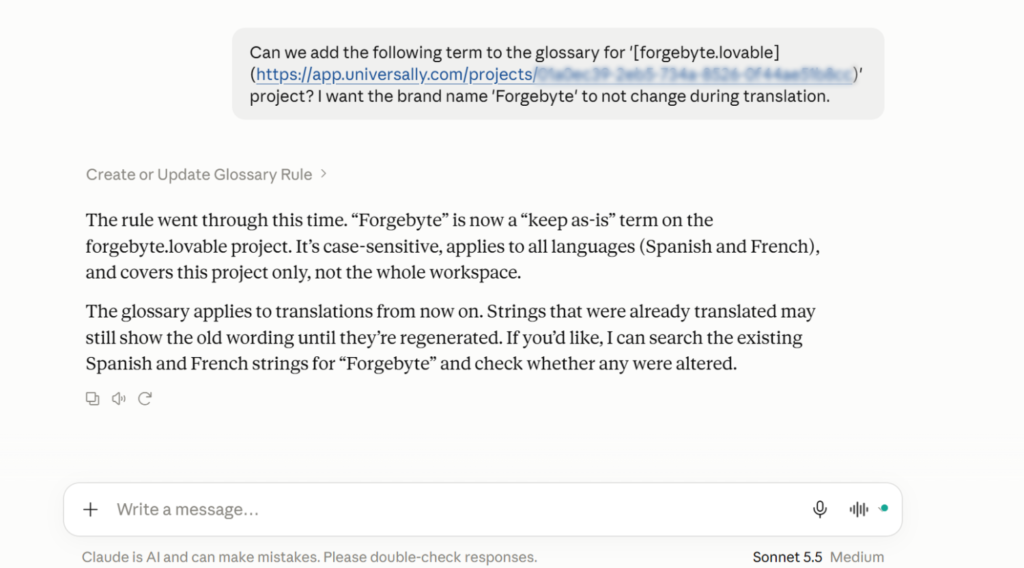
You can even ask Claude to re-translate strings using AI. One thing to keep in mind: re-translation replaces the existing wording, including edits your team may have made manually, and uses your word allowance. It’s a good idea to review the affected strings before asking Claude to proceed.
And if you temporarily switch off a language, its translations remain in Universally. You can bring it back whenever you’re ready.
The idea is simple: less time managing the mechanics of translation, more time moving your multilingual site forward.
Powerful Assistance, With You in Control
Giving an AI assistant access to your website’s translation workflow should come with clear boundaries. That’s why Universally for Claude is designed with permissions built in.
Every connection is read-only by default. Claude can retrieve information, but it can’t make changes unless you enable Allow changes during sign-in.
It also respects your existing workspace role:
- Members have read-only access.
- Editors can edit translations, manage glossary rules, and add or toggle languages, but can’t approve translations or create sites.
- Owners and admins have full access within the connector’s supported capabilities.
Claude can’t delete sites, languages, translations, or glossary rules. Each connection is limited to the workspace you select, and your private API keys aren’t shared with Claude.
Universally for Claude runs on our new MCP server. MCP (Model Context Protocol) is an open standard that lets AI assistants connect to external tools and services.
Your existing site setup stays intact. Nothing changes simply because you connect Claude; changes happen only when you ask Claude to perform an action you have permitted. You can also disconnect the connector whenever you want.
Bring Universally Into Your Next Claude Conversation
Your next translation question doesn’t have to mean another trip to your dashboard.
With Universally for Claude, you can check your multilingual setup, find the translations you need, and handle everyday updates from the same place you’re already working.
Connect Universally to Claude and start with a simple question. You might be surprised by how much easier the little tasks become.
Have ideas for what you’d like Claude to do with Universally next? We’d love to hear from you.


Add a Comment