

Getting hreflang wrong on your WordPress site is one of the fastest ways to lose multilingual SEO traffic before you ever build it. When Google can’t tell which version of your page belongs to which audience, it either ignores your translated pages or treats them as duplicate content.
When it comes to adding the hreflang, the frustrating part is that you would have to edit your theme’s functions.php file or manually configure hreflang inside your SEO plugin. Neither option is realistic if you don’t have a developer available.
I’ve worked in the WordPress ecosystem for over 10 years, and hreflang errors are a common problem on multilingual WordPress sites. But with Universally, you get a completely no-code way to handle hreflang in WordPress, and it takes under 10 minutes to set up.
In this guide, I’ll cover what hreflang tags are, why your site needs them, and the exact steps to implement them without writing a single line of code.
What Are Hreflang Tags?
Hreflang tags are HTML link elements placed in the <head> section of your pages. They tell search engines like Google which language and region each version of a page is intended for.
Here’s what a basic hreflang implementation looks like:
<link rel="alternate" hreflang="en" href="https://example.com/page/" />
<link rel="alternate" hreflang="fr" href="https://example.com/fr/page/" />
<link rel="alternate" hreflang="x-default" href="https://example.com/page/" />
Each tag uses an ISO 639-1 language code in the hreflang attribute (en for English, fr for French, de for German) and the URL of that language version in href. The x-default tag specifies a fallback page for users whose language doesn’t match any version you’ve translated.
One rule that trips up most implementations: hreflang must be bidirectional. Every language version of a page must reference all other versions, including itself. If your French page doesn’t link back to the English page, Google considers the entire cluster invalid and ignores it.
Why Hreflang Tags Matter for Your WordPress Site
Without hreflang tags, Google can’t reliably identify which version of your content to show to which audience.
In practice, that looks like this: you create an English page and a Spanish translation. Without hreflang, Google may pick one as the canonical URL and suppress the other entirely. You could end up ranking Spanish content for English-speaking searches, or your translated pages may not rank at all in their target markets.
Hreflang solves this by making the targeting explicit. Google reads the tags and routes users to the correct version based on their language and location settings.
For WooCommerce store owners, this becomes critical at the product page level. A Spanish product page ranking in Mexico or Spain with the right language can meaningfully affect both traffic and conversion. Without hreflang, that accuracy isn’t guaranteed.
The key point: hreflang tags are how your translation work actually pays off in search.
Add Hreflang Tags in WordPress Automatically
Universally is an AI translation tool for WordPress and WooCommerce built by Awesome Motive, the team behind WPBeginner, WPForms, and AIOSEO. Unlike plugins that make hreflang an add-on or a configuration step, Universally generates the full hreflang cluster automatically the moment you add a language to your site.
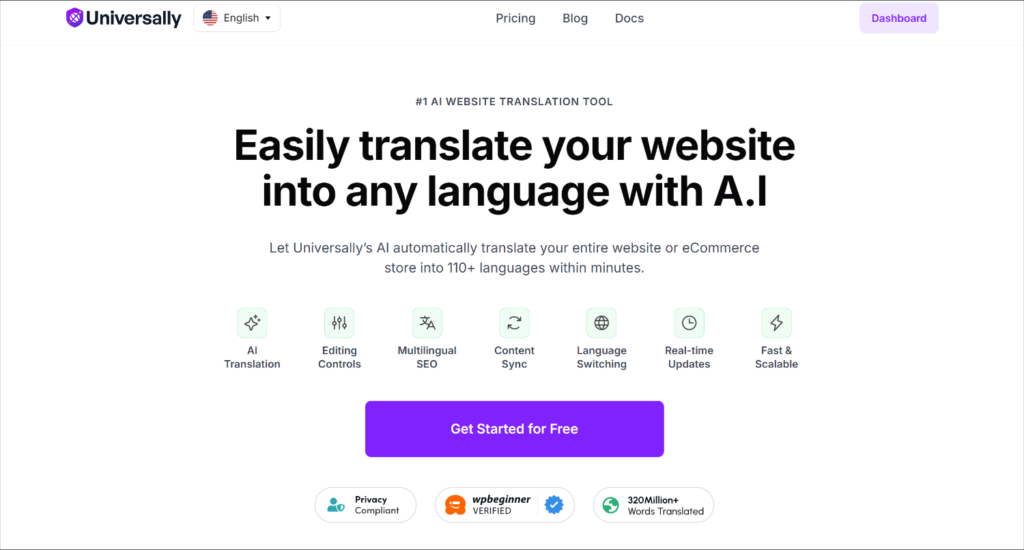
Here’s a quick look at what Universally has to offer:
- Automatic hreflang tags: Universally generates a complete, bidirectional hreflang cluster on every translated page by default. No add-on to enable, no per-page configuration required.
- Full-site translation: Posts, pages, menus, image alt text, WooCommerce products, and checkout pages. Universally automatically translates content across your WordPress or WooCommerce site, without any manual copy-pasting.
- Context-aware AI: Unlike basic machine translation, Universally’s AI reads the meaning and tone of your content and adapts it naturally for each target language.
- No database bloat: Translated content lives outside your WordPress database on an external layer. Your site stays fast, and your existing setup stays clean.
- Works with any WordPress theme: Classic themes, block themes, and page-builder themes all work without extra configuration or CSS tweaks while adding a language switcher.
- One account, multiple sites: If you manage more than one WordPress site, you can translate and manage them all from a single Universally dashboard.
Now, let’s see how to add hreflang tags to your site.
Step 1: Create Your Universally Account
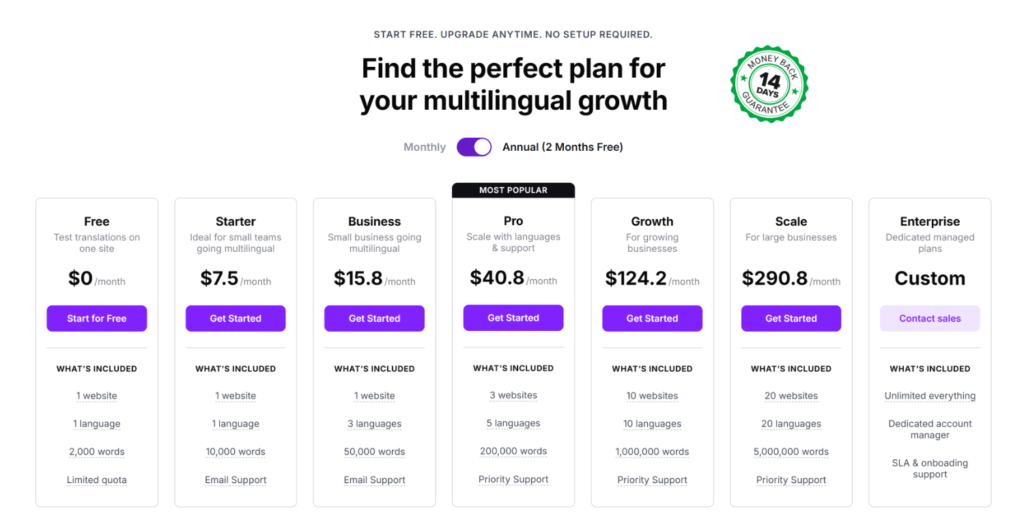
Head over to the Universally website and create your account. Paid plans start at $7.50/month and come with a 14-day money-back guarantee. There’s also a free plan that includes up to 2,000 translated words in one additional language, which lets you test the full setup before committing.
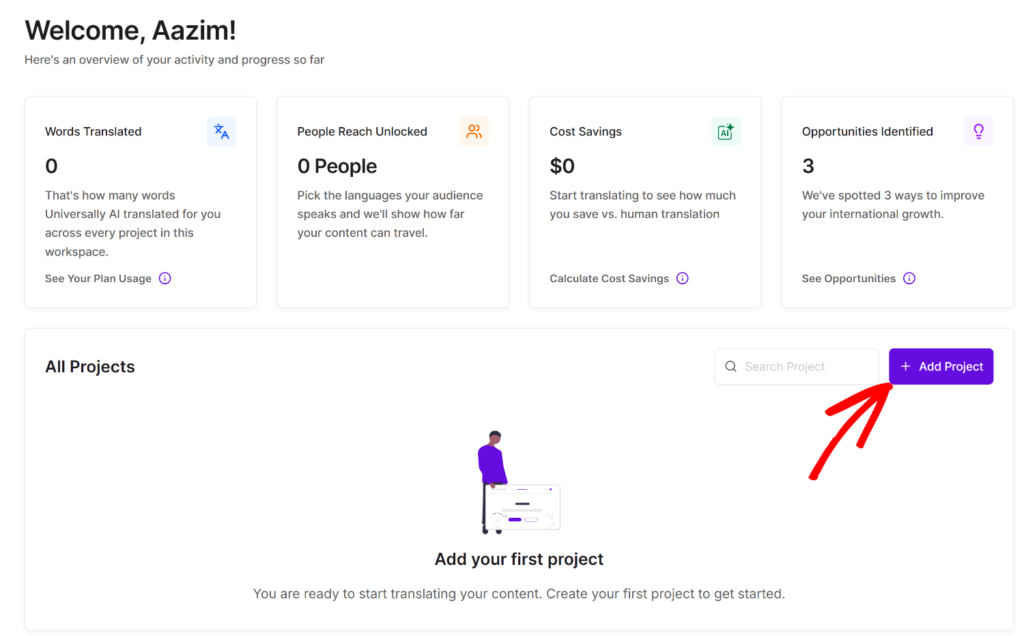
Once you’ve created an account, you’ll land on the Universally dashboard.
You can click the + Add Project button.
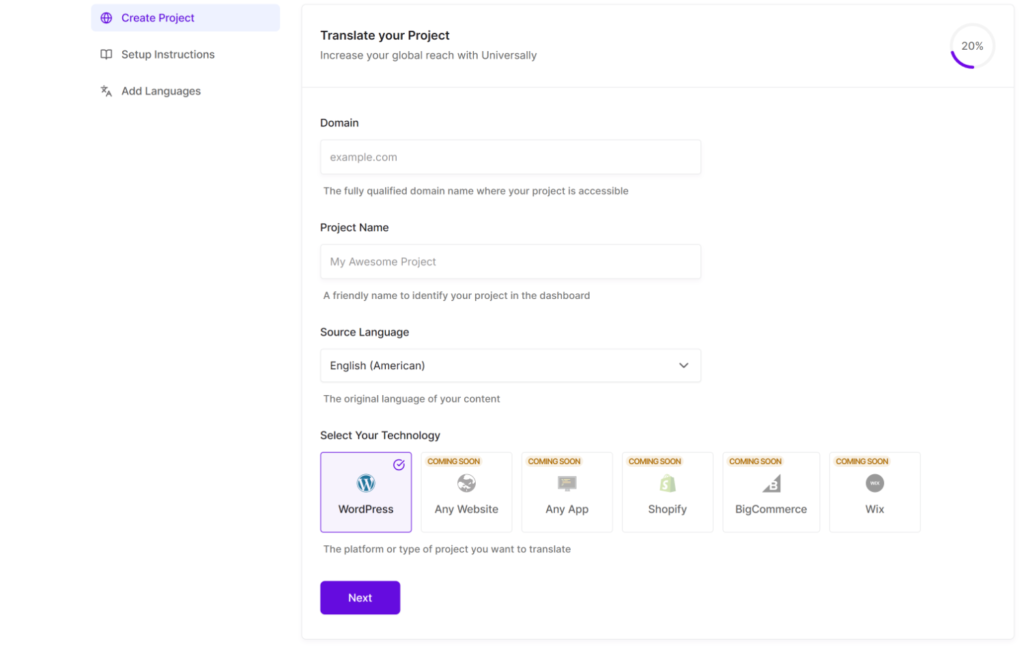
You’ll be asked to fill in the project details, such as your site’s domain, a project name, and a source language.
From there, under ‘Select Your Technology,’ choose WordPress and click Next.
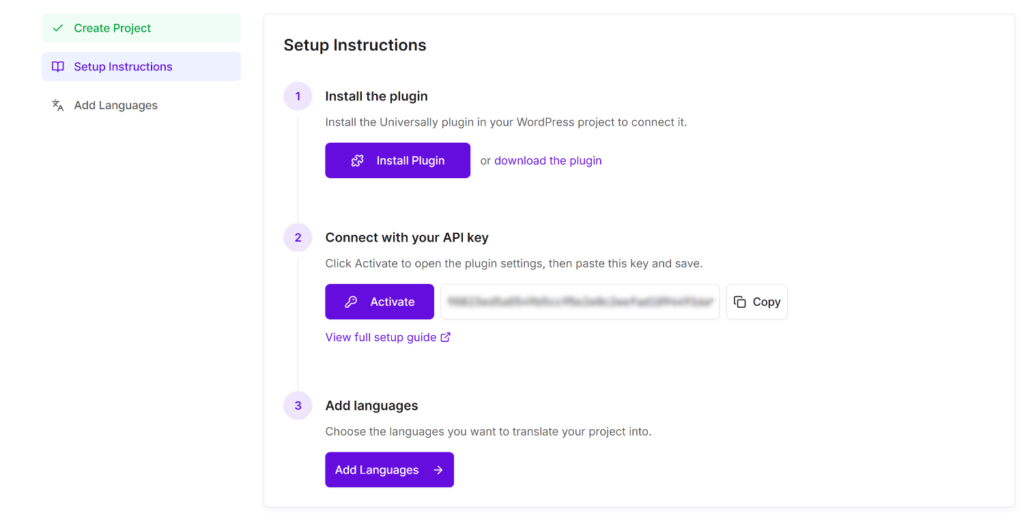
On the following screen, you’ll see instructions for setting up Universally on your WordPress website.
Go ahead and click the ‘Install Plugin’ button or click the ‘download the plugin’ link to save the plugin .zip file on your computer. We also recommend copying the API key and keeping it handy.
Step 2: Connect Universally to WordPress
In your WordPress dashboard, you can go to Plugins » Add New and click the Upload Plugin button at the top of the screen.
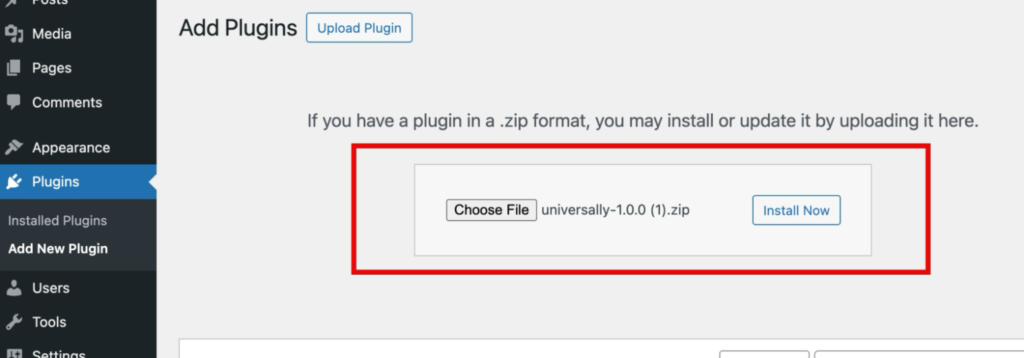
From here, you can click Choose File, select the Universally .zip file you just downloaded, and click Install Now. Once the installation finishes, go ahead and click Activate Plugin.
For more help, please see this guide on how to install a WordPress plugin.
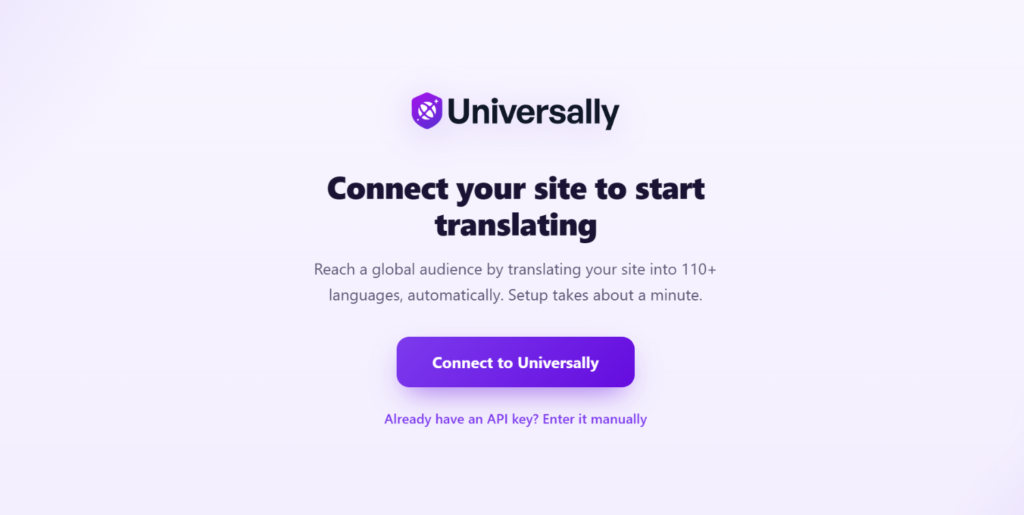
After activation, you’ll see a welcome screen. Go ahead and click the Connect to Universally button and follow the on-screen instructions.
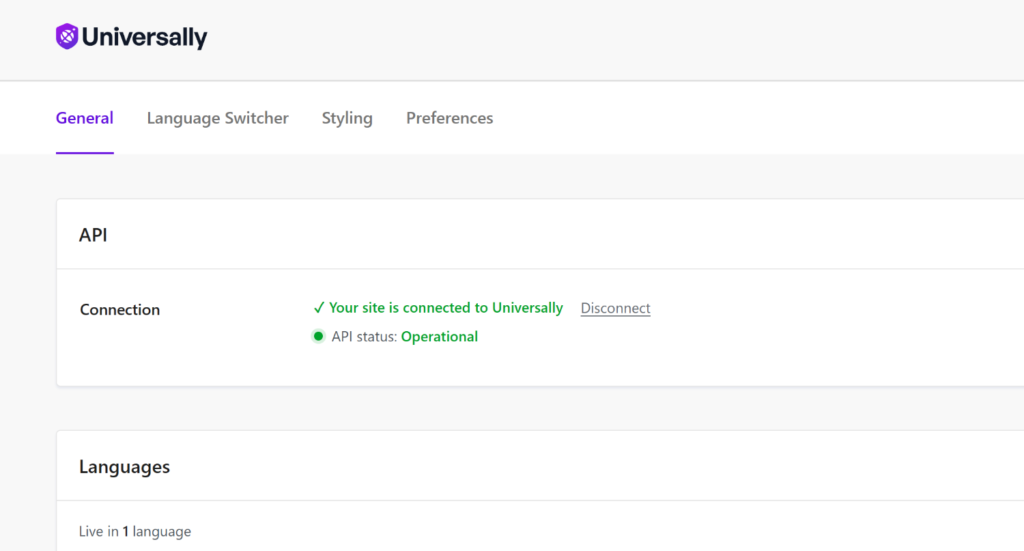
Once connected, you’ll see the API connection indicator turn green in the Universally settings under the API section.
If it doesn’t connect automatically, you can paste in the API key you copied earlier.
Step 3: Add Languages for Translation
This is the step where hreflang tags start being generated.
In your WordPress admin panel, go to Universally and scroll down to the Languages section under the General tab. Go ahead and click + Add Languages.
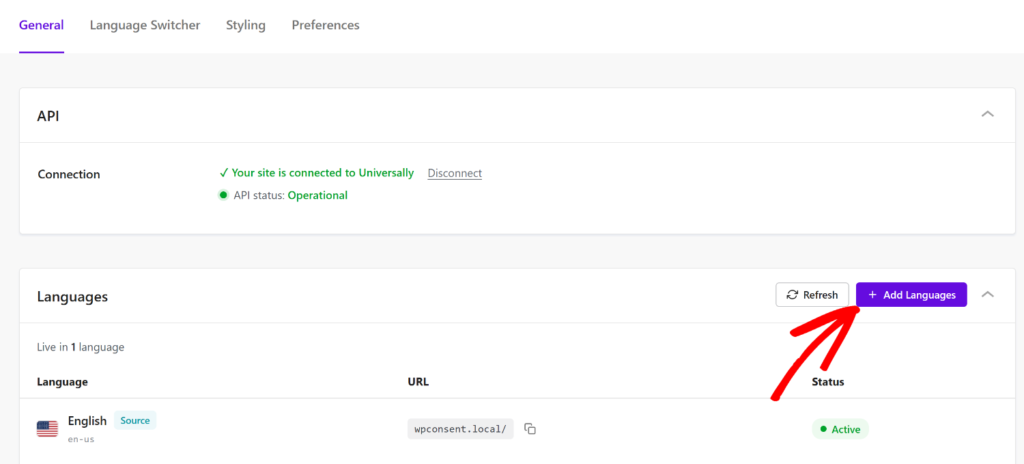
You’ll then be redirected to the Universally dashboard.
Simply click Add Language under the All Languages tab.
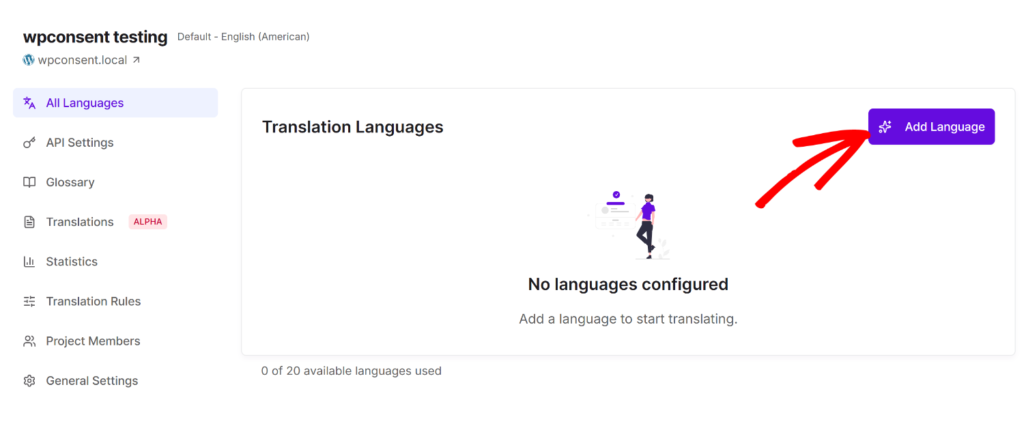
A popup will appear where you can select your target language.
You can choose from a dropdown list of 110+ supported languages.
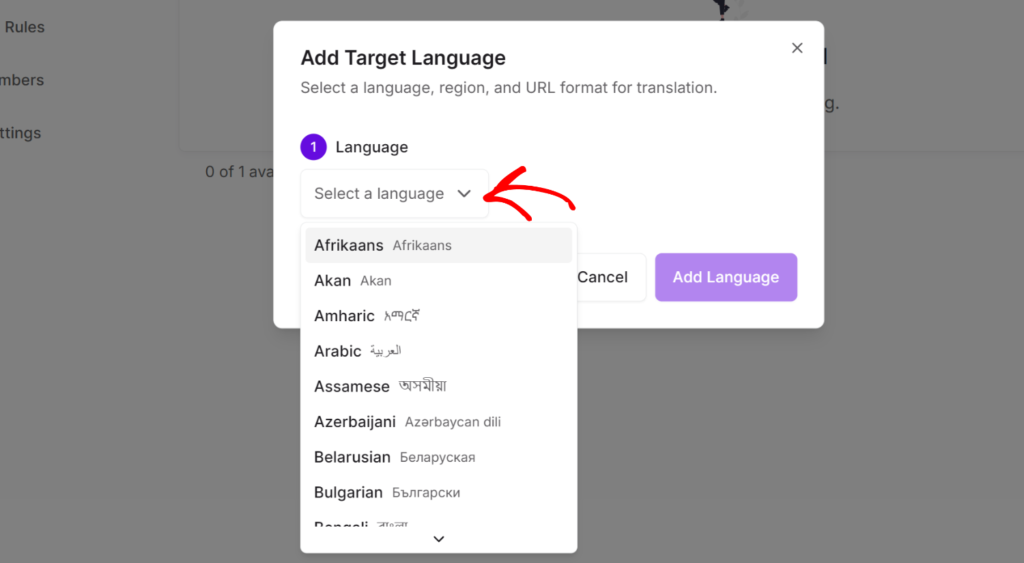
After selecting a language, you’ll see two more options:
- Region: For languages spoken in multiple countries, you can target a specific region. For example, you can distinguish between French for France and French for Canada, or Portuguese for Brazil and Portuguese for Portugal.
- URL Format: This controls how your translated pages appear in the URL. For multilingual SEO, the subdirectory format is what Google recommends. For instance, your Portuguese pages will live at
yoursite.com/pt/, your German pages atyoursite.com/de/, and so on. Universally uses this format by default, and it’s what the hreflang tags will reference.
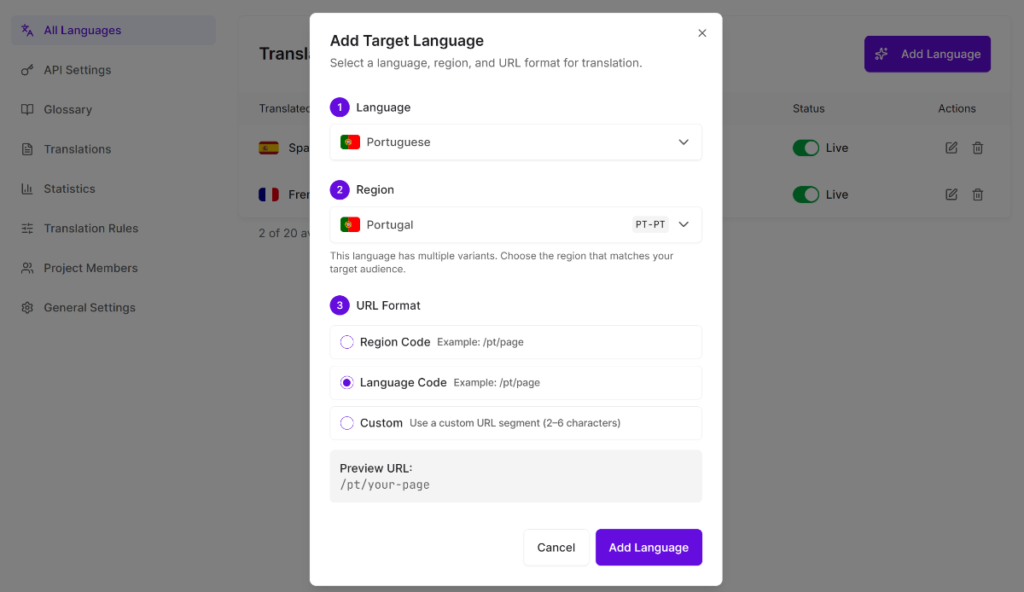
Go ahead and click Add Language when you’re done. You can repeat this step for each additional language you want to add.
Congratulations, that’s all it takes.
Universally’s context-aware AI engine automatically translates every page, post, menu item, image alt text, WooCommerce product description, and metadata.
More importantly for this guide, it also generates a complete hreflang cluster on every page: bidirectional references, self-referencing tags, x-default, and the correct ISO language codes.
You don’t configure any of that separately. It’s built into the translation layer.
Step 4: Verify Your Hreflang Tags Are Live
Once you’ve added at least one language, go ahead and visit any page on your site.
From there, you can right-click anywhere and select View Page Source, then use Ctrl+F (or Cmd+F on Mac) to search for hreflang.
For example, here’s how the hreflang tags appear on the Universally website.
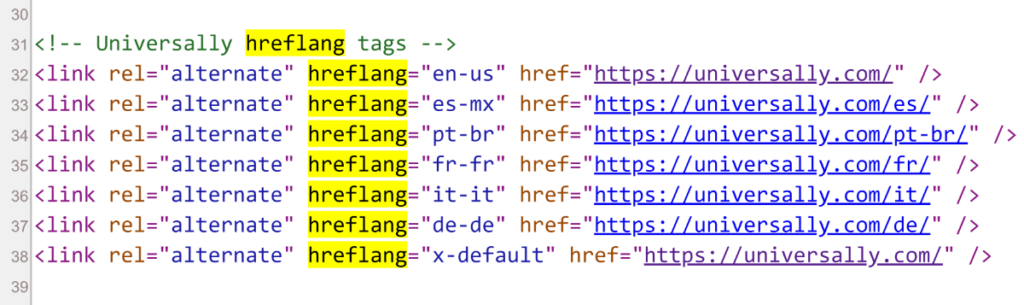
You should see a complete cluster in the <head> section: one tag per language version, a self-referencing tag for the current page’s language, and an x-default tag pointing to your original language version.
If the tags are there, your hreflang implementation is live and working.
What Universally’s Hreflang Implementation Covers
Universally’s multilingual SEO layer handles every requirement for a valid hreflang setup:
- Correct ISO language codes: The right two-letter codes (and regional codes where applicable) that Google expects.
- Self-referencing tags: Every language version includes a reference back to itself, as Google requires.
- Bidirectional linking: All translated pages reference every other language version automatically.
- x-default tag: Set to your original site language by default.
- Subdirectory URL structure: Translated pages live at
example.com/fr/,example.com/de/, etc., the format Google recommends for multilingual SEO. - Translated meta titles and descriptions: Every language version gets its own SEO-optimized meta, not a copy of the original.
- XML sitemap entries: Translated pages are included in your XML sitemap automatically.
- SEO plugin compatibility: Works alongside Yoast SEO, AIOSEO, Rank Math, and SEOPress without conflicts.
Universally keeps translated content out of the WordPress database. This external translation layer means you don’t experience any database bloat, page-builder conflicts, or slowdown from having a multilingual setup. Translations are processed in the cloud and served from a global CDN.
How to Verify Your Hreflang Implementation
Beyond viewing the page source, there are two other reliable ways to check your hreflang setup.
Google Search Console: Under Legacy Tools and Reports, the International Targeting section shows hreflang errors Google has detected across your site. This includes missing return tags (bidirectional failures) and incorrect language codes. It’s the most authoritative check available.
Merkle’s Hreflang Checker: Paste in a URL and it validates the complete hreflang cluster across all language versions. It shows you exactly which tags are present, which are missing, and whether the bidirectional references are complete. This is the fastest way to catch implementation errors before they affect rankings.
The Problem with Manual Hreflang Setup in WordPress
Adding hreflang manually requires editing your theme’s functions.php file or a custom plugin to output the correct tags on every page. You need to maintain a list of every language, every URL pattern, and the x-default logic. One wrong language code, a missing self-reference, or a non-canonical URL, and the implementation may not work as intended, often without an obvious warning.
Even SEO plugins don’t fully solve this. Yoast SEO’s hreflang support requires configuration alongside a separate multilingual plugin. That’s two plugin systems that need to be correctly set up and kept in sync every time you publish new content.
Most WordPress translation plugins treat hreflang as an add-on or a setup step you have to complete manually. That means you can publish translated content for months with no valid hreflang in place, and Google quietly ignores all of it.
The most reliable approach is a plugin that generates hreflang automatically on every translated page by default, with no additional setup required.
Common Hreflang Mistakes to Avoid
Even with a plugin generating your tags automatically, knowing what to look for helps you catch anything that slips through.
- Missing x-default tag: Without x-default, Google doesn’t know which page to show to users whose language isn’t covered. Universally sets this automatically, but it’s worth confirming in your page source.
- Wrong language codes: Google expects ISO 639-1 codes. Using “english” instead of “en” or the full language name instead of the two-letter code means the tag is ignored.
- Non-bidirectional tags: Every language version must reference all other versions. If you have English, French, and German, each page needs all three language tags plus x-default. A partial cluster is treated as invalid by Google.
- URL mismatches: If your hreflang tag uses
https://example.com/but the canonical URL ishttps://www.example.com/, Google sees a mismatch and discards the tags. Protocols and trailing slashes must be consistent across all tags. - Gaps in new content: Manually maintained hreflang means every new page you publish needs to be added to the tag list on all related pages. Automatic generation removes this risk entirely.
FAQs about Hreflang in WordPress
1. What are hreflang tags in WordPress?
Hreflang tags are HTML link elements that tell search engines which language and region a page is targeting. In WordPress, they’re generated either by a translation plugin or by manually adding code to your theme files. They’re required for multilingual sites to prevent duplicate content issues and ensure each language version ranks in its intended market.
2. Does Universally add hreflang tags automatically?
Yes. Universally generates a complete hreflang cluster on every translated page the moment you add a language. The tags are bidirectional and include the required x-default tag. There’s no separate SEO configuration needed.
3. Do I need hreflang tags if my site is only in one language?
No. Hreflang tags are only relevant when you have the same content in multiple languages or are targeting multiple regions. A single-language site does not need them.
4. Can I use Universally with Yoast SEO or AIOSEO?
Yes. Universally is compatible with Yoast SEO, AIOSEO, Rank Math, and SEOPress. Your SEO plugin handles on-page optimization for your original-language content, while Universally manages hreflang, translated meta titles and descriptions, and the subdirectory URL structure for every language version.
5. What happens to my hreflang tags if I cancel Universally?
Universally stores translated content on external servers. If a subscription lapses, translated pages stop serving, and the hreflang tags for those pages are no longer active. This is the same trade-off as any cloud-based translation platform, including Weglot. As long as the subscription is active, everything runs automatically.
Hreflang is one of the highest-leverage multilingual SEO steps you can take, and one of the easiest to get wrong when it’s done manually. If you want translated content that Google actually routes to the right audience, the implementation needs to be complete, bidirectional, and applied to every page, including the ones you publish tomorrow.
Universally handles all of that automatically from the moment you add your first language.
We hope this article helped you learn how to add hreflang tags to WordPress. You may also want to see our list on the best WordPress translation plugins and a checklist to ensure your localization strategy drives conversions.


Add a Comment