
You’ve got ChatGPT open, polishing the copy for your next product launch. Then a translation question pops into your head. Is Spanish switched on for the new site? Did anyone review last week’s German strings? How many words are left on the plan?
Each answer lives somewhere else. Another tab, another login, another few minutes of clicking through the dashboard while your draft sits waiting.
Now you can ask ChatGPT instead.
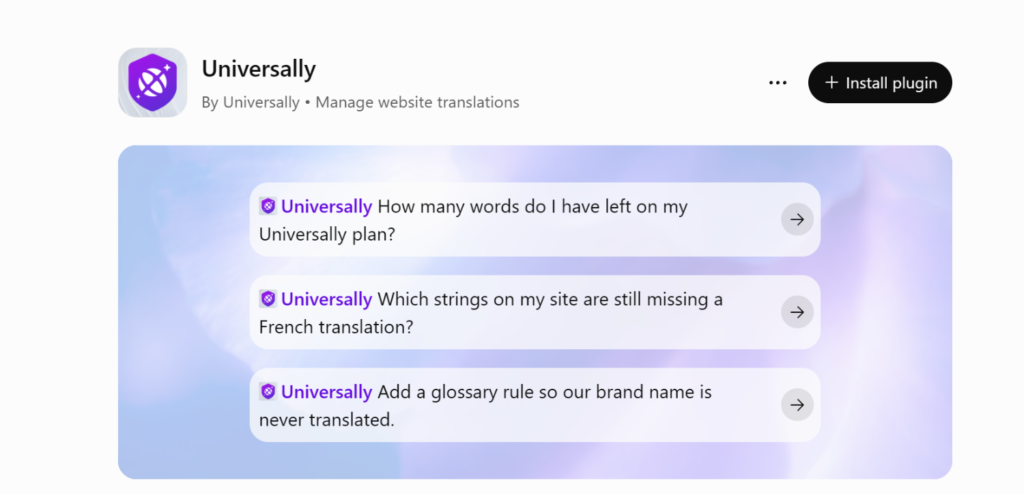
We’re excited to introduce the Universally plugin for ChatGPT, available now in the ChatGPT plugin directory.
Connect your Universally workspace, and ChatGPT can tell you how your multilingual sites are doing, track down translations that need attention, keep your brand terms consistent, and even set up a brand-new site. You stay in the same chat the whole time.
Let’s look at what you can do with it.
See Where Every Site Stands, Without Opening a Dashboard
Start with the questions you’d normally go digging for.
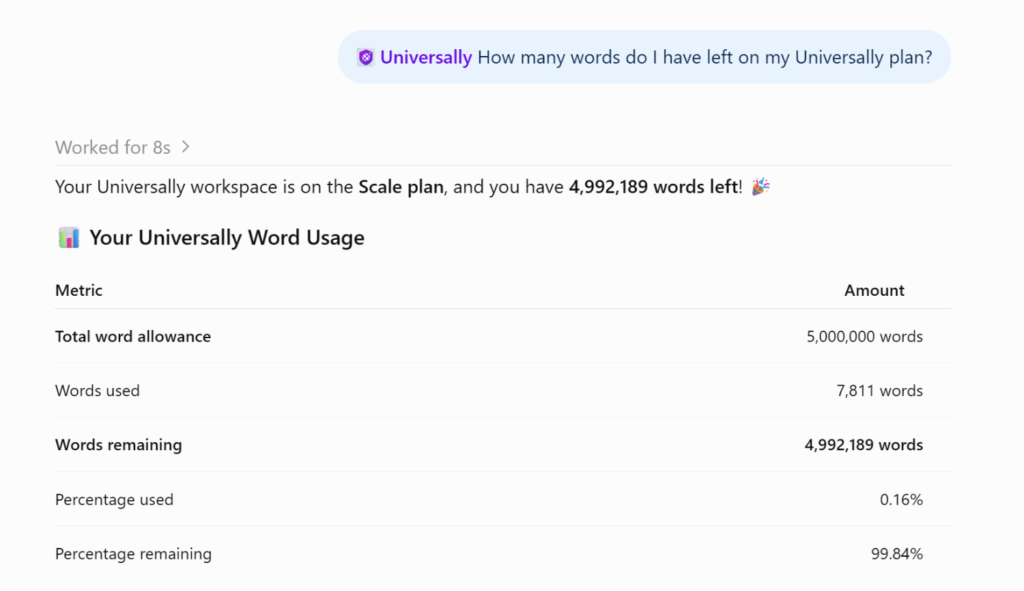
ChatGPT can list the sites in your workspace, show which languages each one serves, check how many of your prepaid words are left, and tell you which pages get the most translated traffic.
So instead of piecing it together yourself, you could ask:
- “Which languages is my store site serving right now?”
- “How many words do I have remaining?”
- “Which pages had the most translated traffic in the last 24 hours?”
The answer comes back right where you asked it, ready for your next question.
Catch the Strings Nobody Has Reviewed Yet
Picture the week before a German launch. You want to know what’s still untouched before real visitors see it.
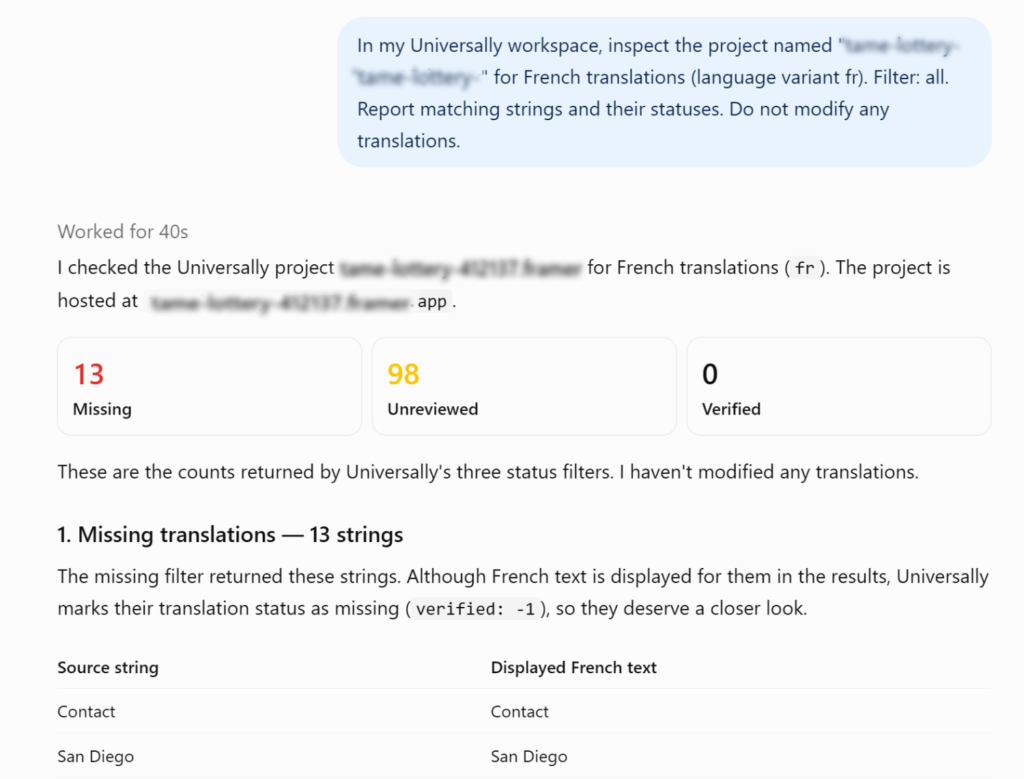
Ask ChatGPT to search your site’s strings by text or by status, and it can pull up everything that’s missing, unreviewed, or already verified. From there, open any string to read every translation of it side by side, across all your languages.
When something reads wrong, you can fix it on the spot. With changes allowed, ChatGPT can:
- Correct a translation: Rewrite a string in the wording you want.
- Approve it: Mark a translation as reviewed once you’re happy with it.
- Generate a fresh one: Ask for a new AI translation of a string.
A quick heads-up on that last one. A fresh AI translation replaces the current wording, including any edits your team made by hand, and it uses your prepaid words. Read the string first so you don’t overwrite something you meant to keep.
Your review list gets shorter without a single trip to the translation editor.
Teach It Your Brand Terms Once
Some words should never change. Your company name, a product line, the label on your best-selling plan.
ChatGPT can list your existing glossary rules and create or edit new ones. Keep a brand name untranslated everywhere, or make sure a term is always translated the same way in every language.
It works for patterns too. Ask for a rule that covers your order numbers, and ChatGPT can set it up so they’re never run through translation.
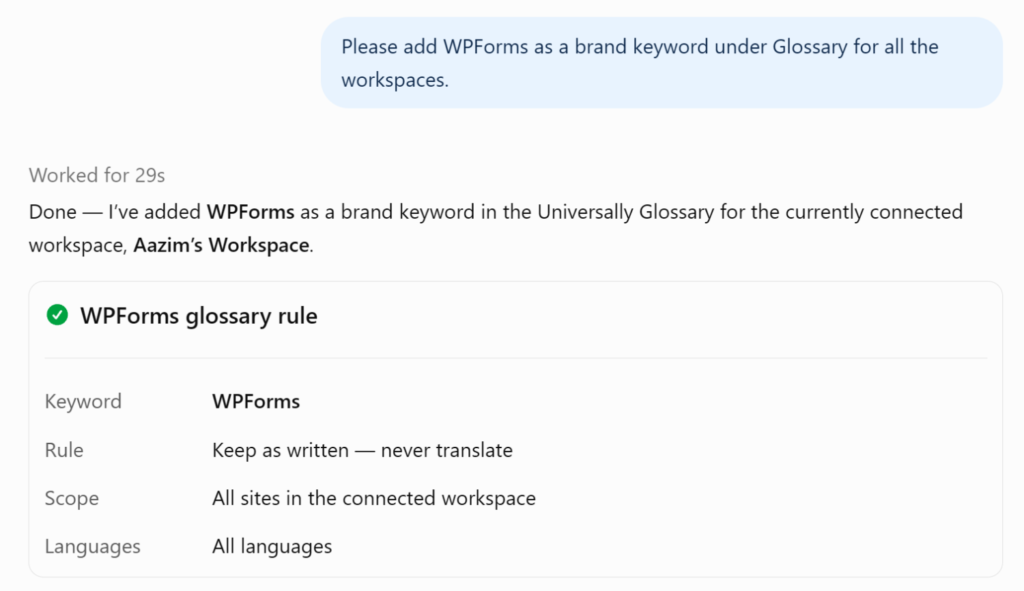
Set the rule once, and your terminology stays put across every page.
Go From New Site to Live Languages in One Conversation
Launching another website? You can start that in the chat, too.
Tell ChatGPT about the site, and it can create it in your workspace and hand you the exact install steps for your platform. That covers WordPress, Astro, or a script tag you can add to any other website.
Once the site is set up, ask it to add a language, or switch a language on or off as your launch plans change.
A couple of things to know. A new site counts toward your plan’s site limit, and it starts translating once you’ve installed Universally on it. And if you switch a language off, its translations stay safe in Universally, ready for when you turn it back on.
Read-Only Until You Say Otherwise
Letting an AI assistant into your translation workspace should come with firm limits, so we built them in from the start.
When you connect the plugin, you sign in with your Universally account and pick one workspace. The connection is read-only unless you tick Allow changes, so you can start by asking questions and decide later whether ChatGPT should edit anything.
It also never goes beyond your role in the workspace:
- Members can read, but not change anything.
- Editors can edit translations, manage glossary rules, and add or switch languages, but can’t approve translations or create sites.
- Owners and admins get the full set of tools.
There are no delete tools at all. Deleting sites, languages, translations, or glossary rules stays in your Universally dashboard. When you connect through your Universally account, your private API keys are never exposed to ChatGPT.
Ready to Hand Off the Little Translation Tasks?
That translation question in the middle of your launch draft doesn’t have to pull you out of the chat anymore.
The Universally plugin for ChatGPT is available now! Connect your workspace, ask your first question, and see how much of your routine translation work you can handle without switching tabs.
All you need is a Universally account.
Have an idea for what ChatGPT should be able to do with Universally next? We’d love to hear from you.


Add a Comment