
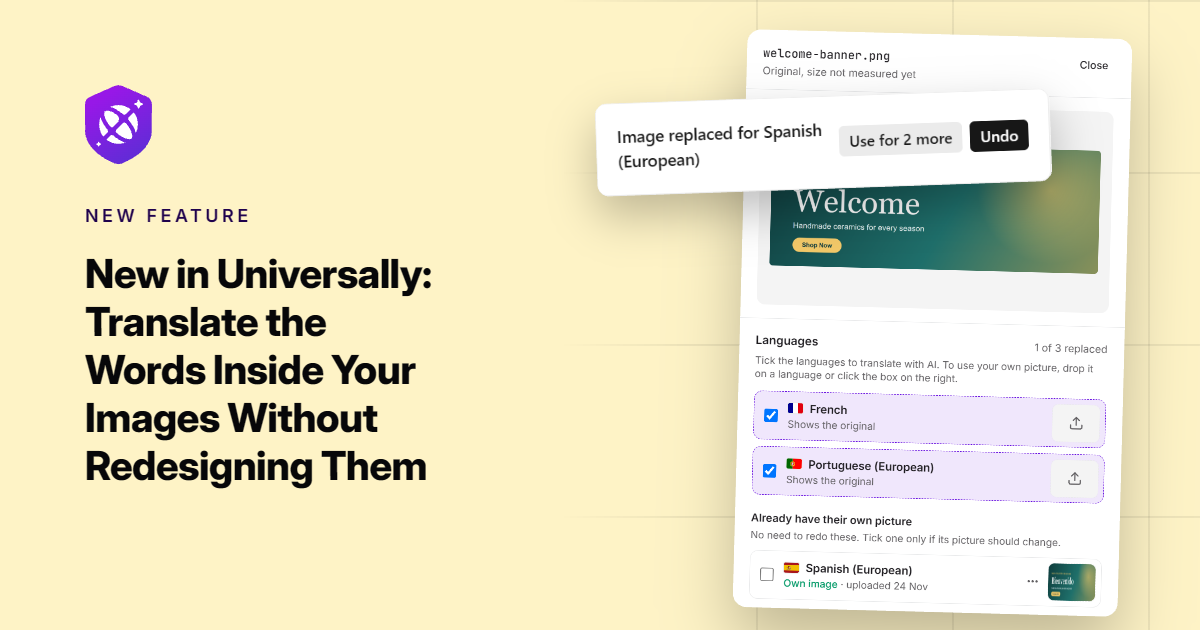
Imagine a visitor from Paris lands on your homepage and picks Français from the language switcher. The menu, the headings, and the buttons all switch to French.
Except the big banner across the top. That one still says “Welcome.”
It’s the first thing they see, and it’s the one part of the page that didn’t come along.
What if your images could switch languages with everything else?
Now they can. We’re excited to introduce image translation in Universally!
You can show a different image for each language, either by uploading your own version or by letting AI translate the text inside the picture for you.
Here’s how both options work.
Show Each Language the Image Made for It
Sometimes you already know exactly what a market should see. Your designer has made a German version of the banner, or you’d rather show your Japanese visitors a different photo altogether.
Now you can hand Universally that image and let it take over.
Open Media in your project sidebar and click the image you want to change. You’ll see a row for each of your languages. Drop your file onto a language’s row, and it saves right away.
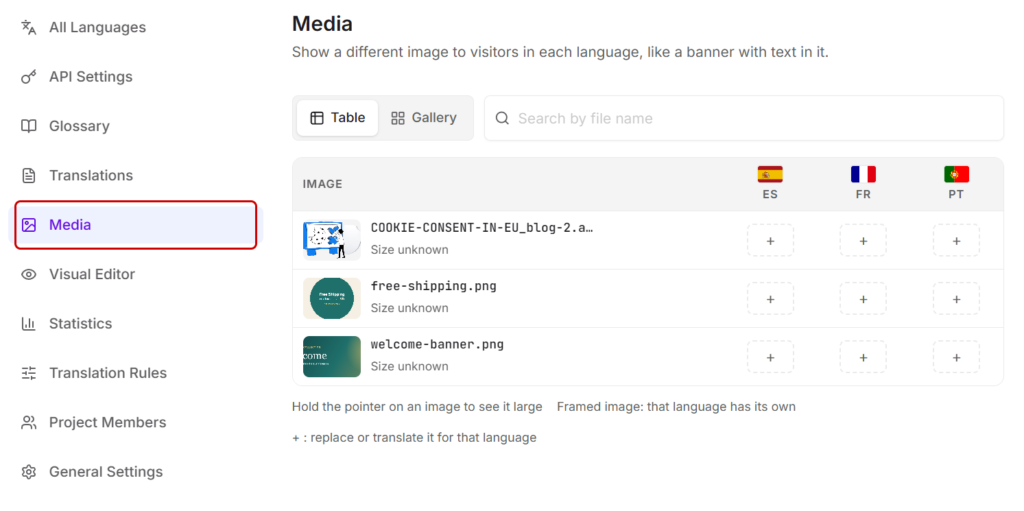
That’s it! Your version replaces the original everywhere it appears on your site, on every page, for visitors browsing in that language. No hunting through pages one at a time, and no duplicate pages to keep in sync.
You can replace as many images as you like, in as many languages as you need. And because you’re swapping a picture rather than translating text, it doesn’t use any of your translated words. Our guide to replacing images by language covers the details.
Same Picture, Now in Every Language
Making a new version of every image for every language is a lot of design work. And often, the picture itself is fine. Only the words on it need to change.
So that’s what our AI localization does.
Pick an image, and Universally creates a localized copy with its text translated, while keeping the layout, fonts, colours, people, and products just as they were. Your “Welcome” banner can come back as a “Bienvenue” banner for your French visitors or “Bienvenido” for Spanish visitors.
The best part? You don’t have to do it one language at a time. When you open an image, the languages still showing the original are already ticked. Click Translate, and Universally gets to work on all of them in one go.
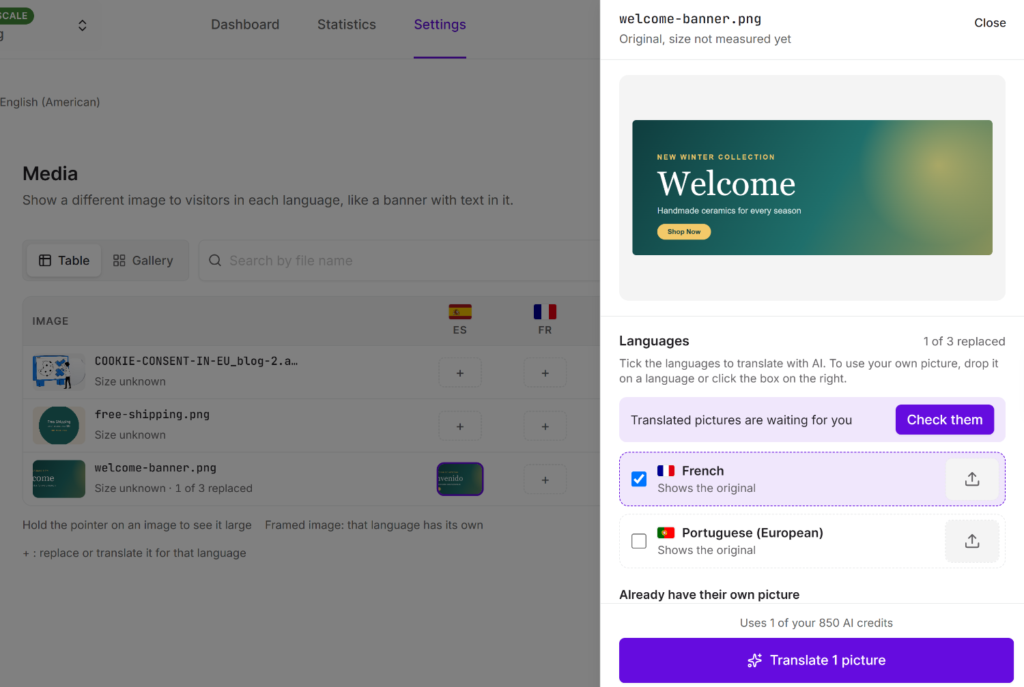
Your glossary comes along, too. Terms you’ve set to Keep, like your brand or product names, stay exactly as they are in the translated picture.
You See Every Image Before Your Visitors Do
Your images are often the first thing a visitor sees, so you get the final say on every one.
Once the translations are ready, you’ll see a card for each language. Click a picture to enlarge it, and press Hold to see the original to compare it with the image you started with.
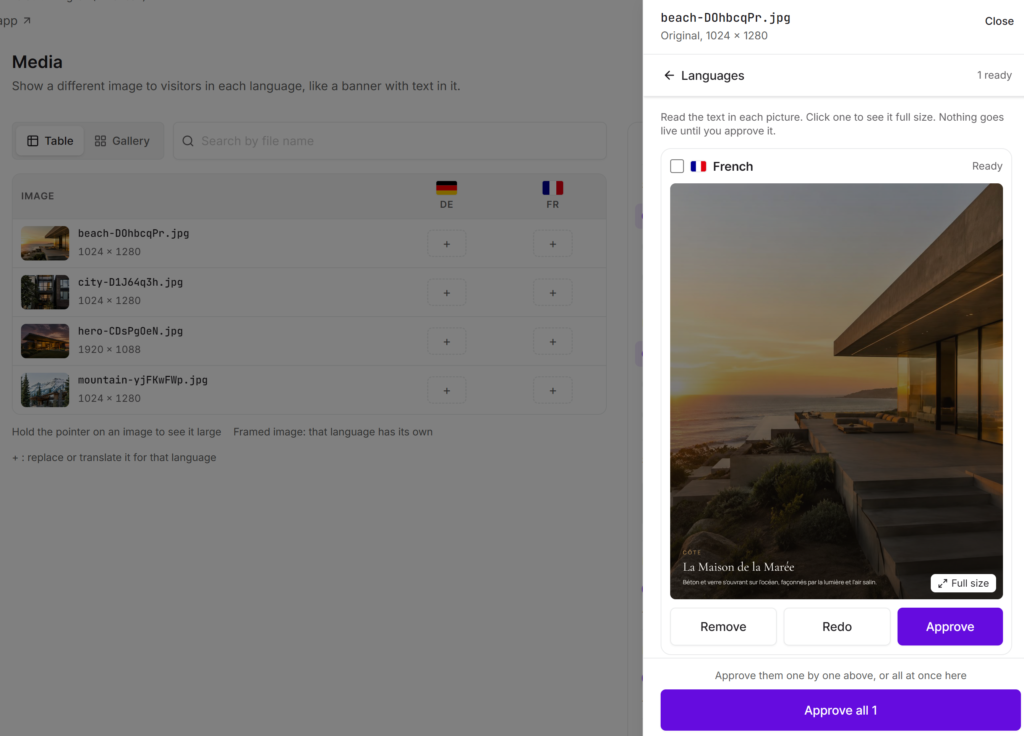
From there, you can Approve it, ask for a Redo, or Remove it. Happy with the whole batch? Approve all takes care of it in one click.
It’s a good idea to give each picture a quick look before approving it. AI can occasionally misspell, drop, or move a bit of text, and the review step is there so you catch it before your visitors do.
Once approved, the new picture replaces the original in that language across your whole site.
AI image localization is included on every paid plan, with a set number of AI images each month:
- Starter: 10
- Business: 25
- Pro: 100
- Growth: 300
- Scale: 850
Each picture in each language counts as one, so the count is shared across all your projects, and it resets on the 1st of every month.
Translate Images Wherever You’re Already Working
Both options work from two places, so you can pick whichever fits the way you work.
Prefer to see everything at once? The Media page lists your site’s images in one place, so you can work through them in a single session.
Already fine-tuning translations in the Visual Editor? Just click an image on the page. The same image panel opens, so you can upload your own version or start an AI translation without leaving the editor.
And your existing site isn’t affected. Until you add a replacement or approve an AI version, every language keeps showing your original images, just like before.
Ready to Translate Your First Image?
That “Welcome” banner at the top of your homepage can finally greet visitors in their own language.
Image translation is available now on all paid Universally plans!
Open Media, pick your first image, and choose whether to upload your own version or let AI translate it. Then see how much more complete your translated pages feel.
Have thoughts on image translation, or ideas for what you’d like it to do next? We’d love to hear from you.


Add a Comment