
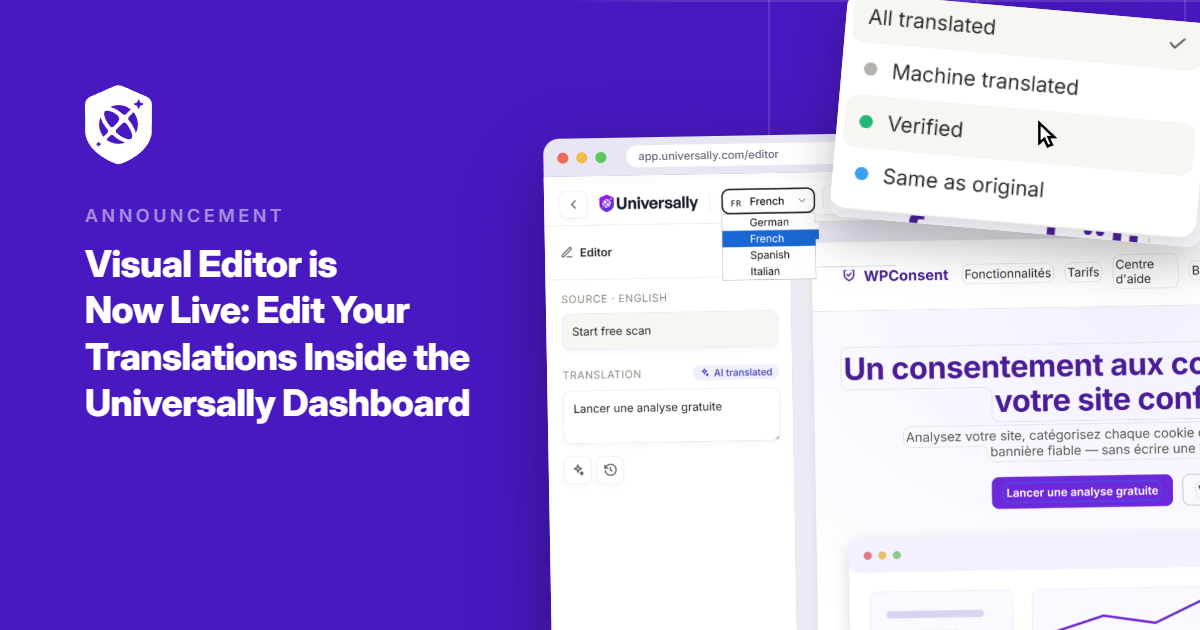
At Universally, one of the things we strive for is making it super easy to manage and edit your translations.
That’s why we’re thrilled to announce an all-new Visual Editor in Univerally!
A translation can look completely fine in a list, then look completely wrong once it’s on the page. A four-word button label suddenly wraps onto two lines, or a translated headline breaks the layout.
With the visual editor by your side, making these changes is now quick and simple.
It changes where you manage translations: directly on the page, with the design and layout right in front of you, instead of working from a separate list of strings.
Let’s take a closer look.
Edit Your Translations in Real-Time
Universally has always made it quick to translate from a list: source text on one side, translation on the other.
Now you can do that same work directly on your live site instead, and see exactly how the text sits inside its button or how a headline breaks, right as you type it.
We built the Visual Editor to close that gap. Open the builder now, and you’re looking at your real site, not a mockup of it.
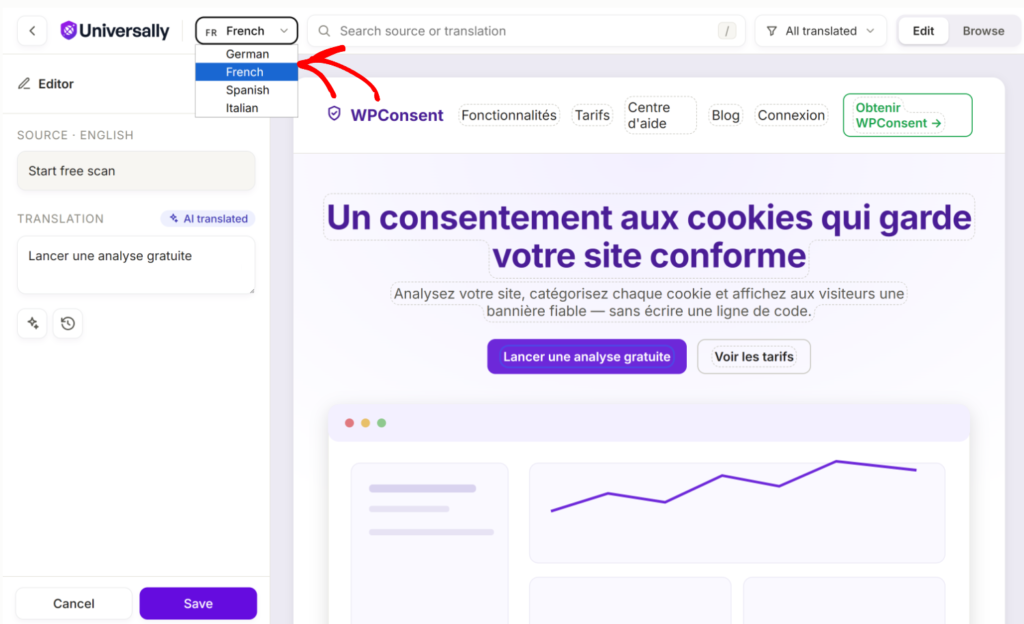
Click any headline, button, or paragraph, and the editor opens that exact spot with a visible line, so you’re never guessing what you’re changing.
Type a translation and watch it land on the page as you go, in the same layout, next to the same images and spacing your visitors will actually see.
Plus, switch between languages using the switcher at the top. So you can instantly see how your site looks in different languages.
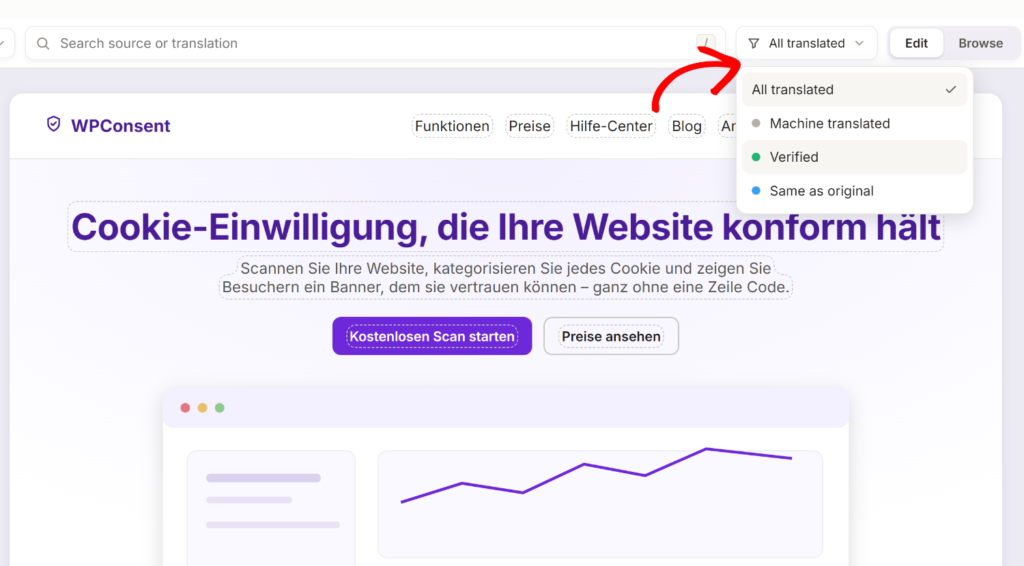
That’s not all. Every translation also has a clear status: AI-translated, verified, or unchanged from the source. So while you’re reviewing the page, you can immediately see what’s already been checked and what might still need your attention.
So why does it matter to use the Visual Editor?
The real benefit of the Visual Editor is context.
A translation can be technically correct and still cause problems once it’s placed inside your actual design. It might make a button too long, cause a heading to wrap awkwardly, or simply feel wrong alongside the surrounding content.
Now you can catch and fix those issues while you’re reviewing the translation, instead of finding them after the page is live.
The status view does the same thing for quality control. Instead of a separate review pass later, you can see right on the page what’s still a machine’s best guess and what a real person has already signed off on, so nothing quietly slips through untouched.
That said, the Visual Editor is live now in your Universally dashboard. Open the builder, choose a page, and start reviewing and editing translations exactly where they appear.
Give it a try and let us know what you think. If you have any questions or feedback on the Visual Editor, we’d love to hear it.


Add a Comment