
You’ve written the help article that answers your most common question. The steps are clear, the screenshots are current, and it’s been sitting in your Help Scout Docs site for months.
Then a ticket comes in asking that exact question, from a customer who couldn’t read the article.
Now imagine writing that article again in Spanish, German, and Japanese. Then doing it for the rest of your knowledge base. Then going back to every version the next time your product changes.
Today, we’re introducing Universally for Help Scout!
Simply add one line of code to your Docs site, and Universally translates your help articles into 110+ languages with context-aware AI.
Let’s look at what that means for your help center.
Every Help Article in Your Language Your Customer Reads Best
Your customers already go to your Docs site looking for answers. Universally makes sure they can understand what they find there with its Help Scout integration.
Once your languages are live, a language switcher appears on your Docs site. A customer picks their language, and the article they’re reading shows up translated, with the same layout and the same URL.
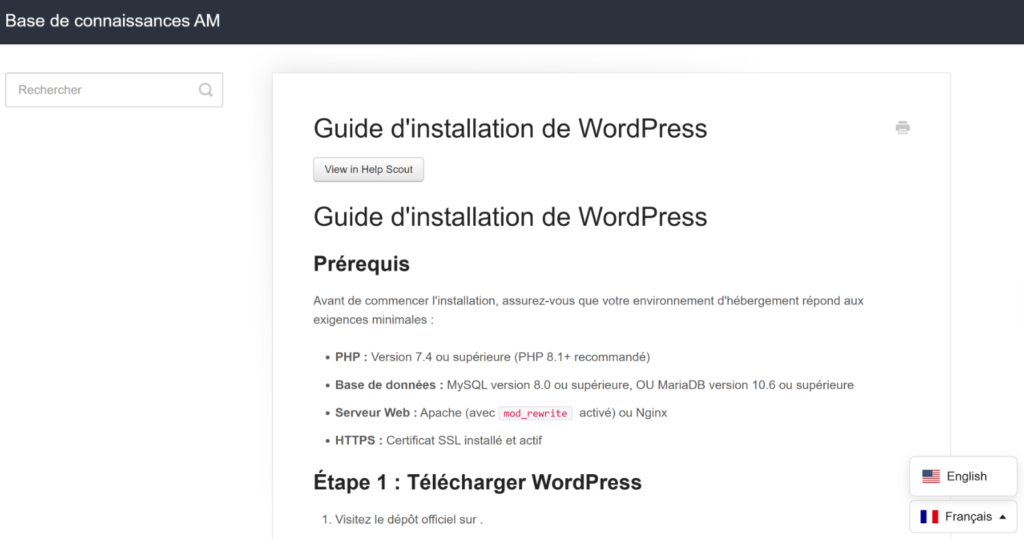
The AI looks at the context of each string as it translates, so a numbered step still reads like an instruction and a button name still makes sense next to it.
More customers can follow the steps on their own, without waiting on a reply from your team.
Besides that, a knowledge base keeps changing. You add an article for a new feature, rewrite a step after a UI update, and retire the workaround nobody needs anymore.
With a manual process, every one of those edits has to be repeated in each language. Miss one, and a customer reading in French follows steps that no longer match your product, then opens a ticket anyway.
Universally takes that off your list. When you publish or update an article in Help Scout Docs, Universally detects the new or changed strings and translates them automatically. You keep writing in Help Scout the way you do today. Every language stays current with it.
Going Live Takes Four Steps
Here’s how it works.
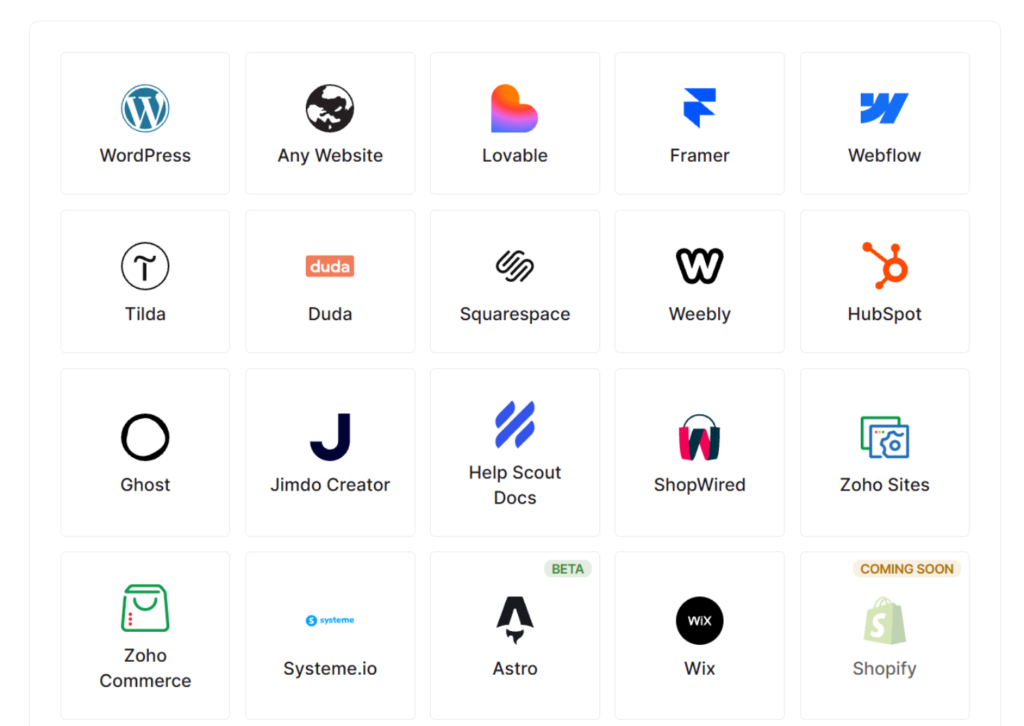
First, create a project in your Universally dashboard and pick Help Scout as your platform.
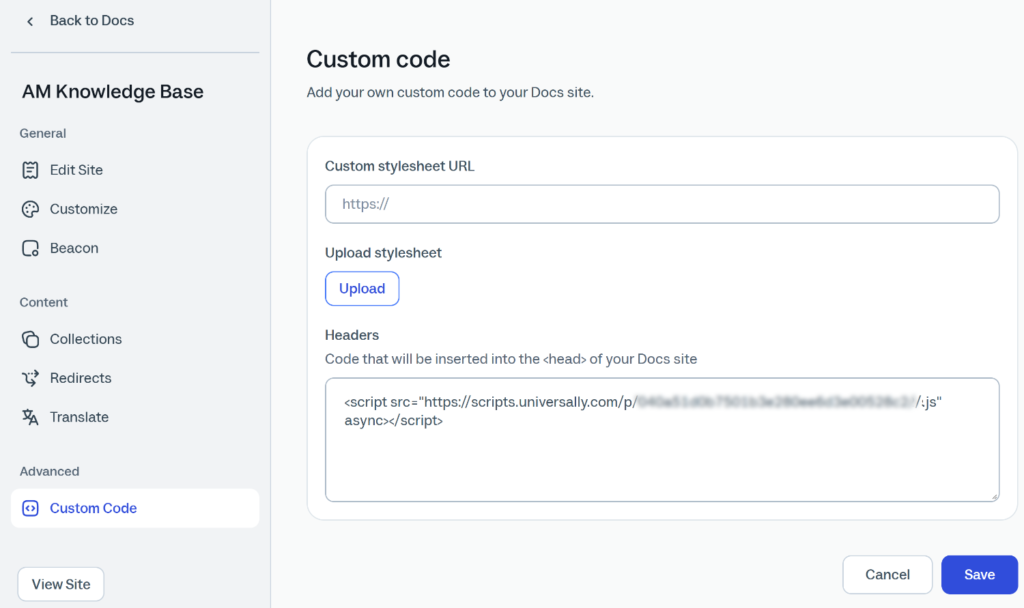
Next, copy the script tag from your dashboard. It will look something like this:
<script src="https://scripts.universally.com/p/YOUR_PUBLIC_KEY/s.js" async></script>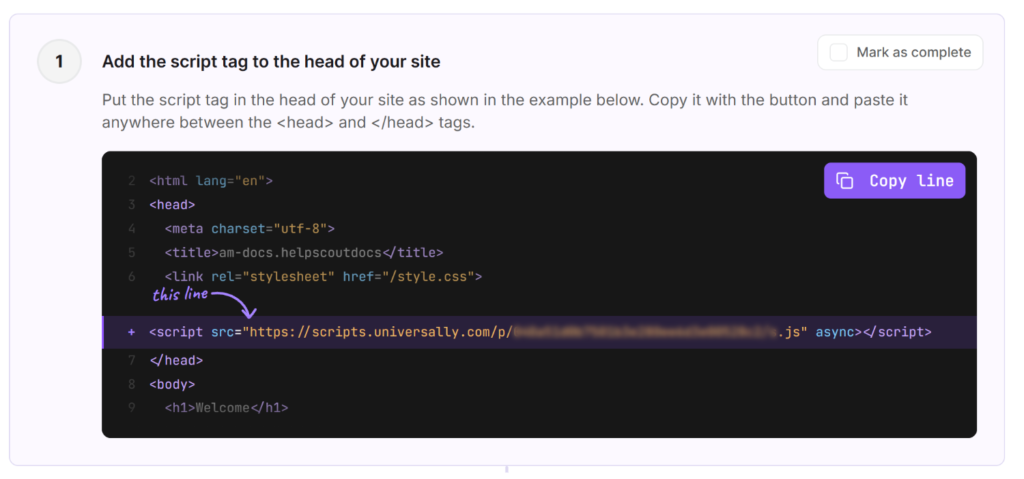
From here, paste it into the custom code section of your Docs site settings in Help Scout.
To do that, you can head to Settings » Docs Sites » Your Docs site.
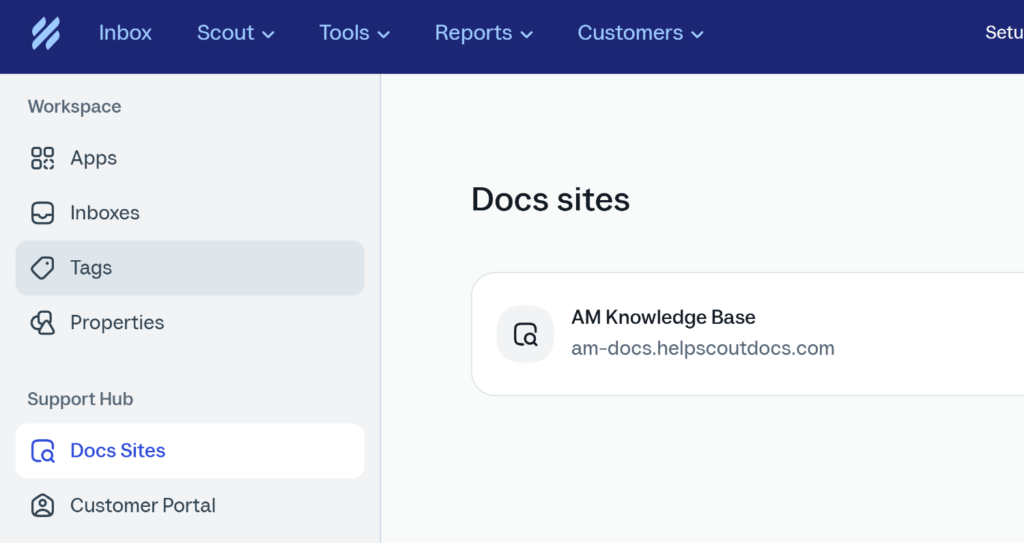
After that, you can go to Custom Code under the ‘Advanced’ section and then enter the script tag under the code section under Headers.
Finally, choose your languages back in Universally. Your translations go live, and the language switcher shows up on your Docs site.
That’s all the setup there is.
Ready for Your Help Center to Speak Your Customers’ Language?
The answers your team has already written can now reach customers in the language they read best.
Universally for Help Scout is available now!
Create your project, paste one line into your Docs site, and start welcoming customers in 110+ languages.
Get started with Universally for free!
Running your help center on Help Scout? We’d love to hear how Universally works for your team. Share your questions, report a bug, or suggest a feature through our contact page.


Add a Comment