
Where the switcher appears is set in the WordPress plugin, under Language Switcher. The Implementation setting decides whether Universally places it for you or you place it yourself.
Before you start
In WordPress, go to Universally » Language Switcher. The Universally item in the admin bar opens the same place.
Let Universally place it
Set Implementation to Auto and pick a Position. Four positions are available:
| Position |
|---|
| Bottom Right |
| Bottom Left |
| Top Right |
| Top Left |
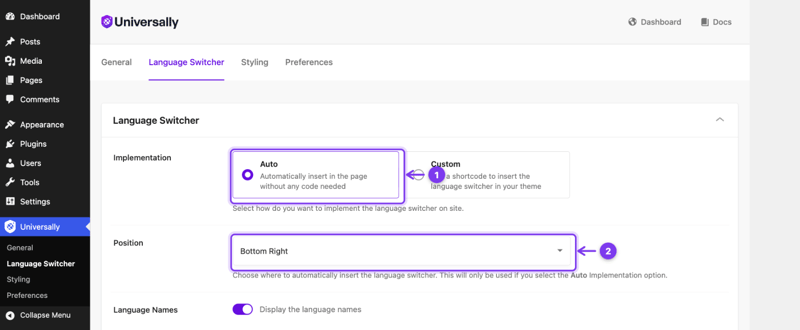
The switcher floats over the page at that corner. No theme editing, and it works on every page.
Place it yourself
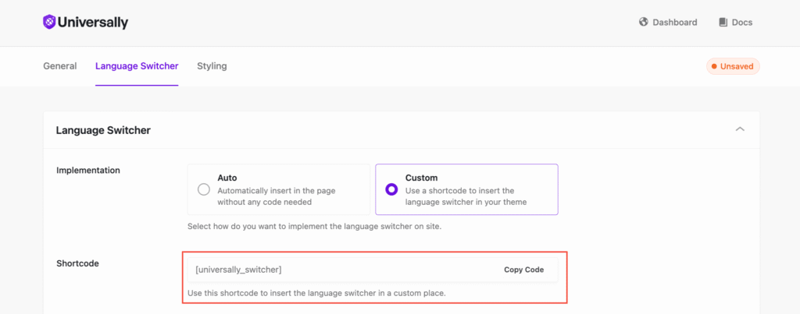
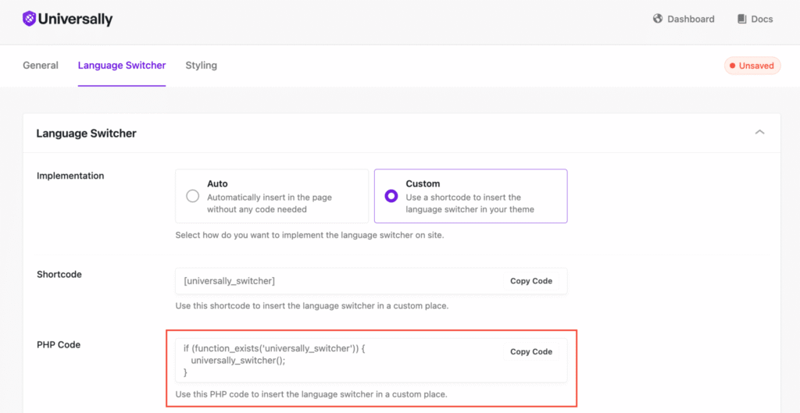
Set Implementation to Custom. Universally then inserts nothing, and gives you three ways to place it.
A shortcode, for a post, page, or widget area:
A PHP snippet, for a theme template such as a header or footer. Edit templates in a child theme so a theme update does not discard your change:
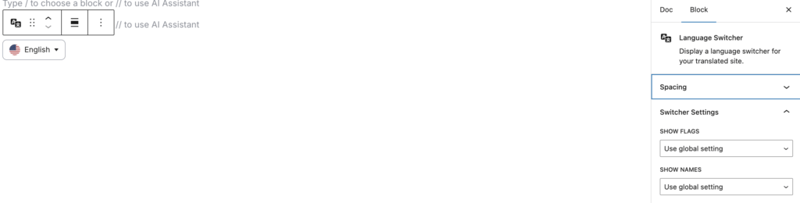
A block, in the block editor, with its own switcher settings in the sidebar:
With Custom selected, nothing appears until you place it. That is the most common reason a switcher is missing entirely. See The switcher is not visible.
Override the settings for one switcher
The shortcode and the PHP function both take attributes, each defaulting to the matching setting on the Language Switcher tab. This is how you get a flags-only switcher in the header and a text-only one in the footer.
| Attribute | Values | Defaults to |
|---|---|---|
show_flags |
true, false |
Country Flags |
show_names |
true, false |
Language Names |
flag_style |
rounded, square |
Flag Style |
[universally_switcher show_names="false"]
[universally_switcher show_flags="false"]
[universally_switcher flag_style="square"]
In PHP the same attributes are array keys:
<?php universally_switcher(['show_names' => false, 'flag_style' => 'square']); ?>
A PHP call can also restyle a single instance, which the shortcode cannot. Pass a style array using the setting names from the Styling tab:
<?php
universally_switcher([
    'style' => [
        'trigger_bg'      => '#000000',
        'trigger_text'    => '#ffffff',
        'trigger_radius'  => '0',
        'dropdown_bg'     => '#111111',
    ],
]);
?>
The block has the same overrides in its sidebar. See Style the switcher for what each value does.
The visitor's choice is remembered
Choosing a language is not just a link click. Viewing any translated URL stores the visitor's language in a universally_lang cookie for 30 days, and while that cookie is set, a request to a URL without a language prefix is redirected to their language instead.
Going back to the source language works through the switcher's own link for it, which carries ?universally_switch=source. That is what clears the cookie: an unprefixed link of your own does not, so the visitor is redirected straight back.
Two consequences worth knowing:
- Your source-language home page can redirect returning visitors. That is the intended behaviour, not a bug, and it is the usual explanation for "my English home page keeps going to /es/".
- A page cache in front of the site changes it. See Caching and CDNs.
If you are building your own switcher, reproduce that source link exactly, or visitors will not be able to get back. See Build a custom language switcher in WordPress.
Hiding it on specific pages
There is no separate setting for this. The switcher is hidden automatically on any page matching your Exclude Pages patterns, and the plugin skips loading its JavaScript there too.
That behaviour follows from the logic: an excluded page has no translated version, so there is nothing to switch to. Configure it by excluding the page. See Exclude pages.
If the exclude patterns cannot be fetched, for example when the API is briefly unreachable, the switcher shows as normal. It fails open rather than disappearing from your site.