
Plan changes take effect immediately, and only the workspace Owner can make one. An Admin can see billing but cannot change the plan.
Change your plan
- Open the user menu and choose Billing.
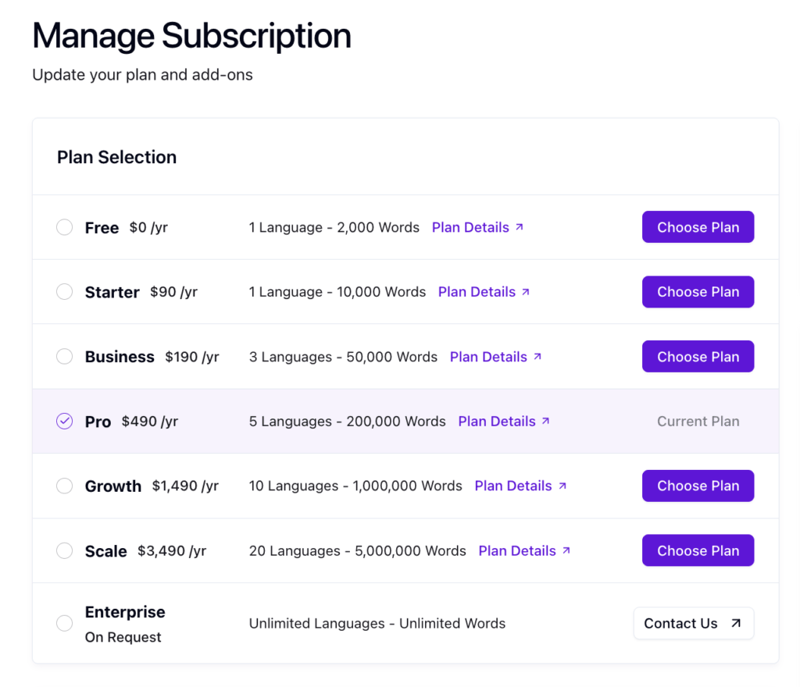
- Choose Manage Subscription.
- Pick the Billing Period first: Pay Yearly (two months cheaper) or Pay Monthly. It changes every price on the screen.
- Select the plan.
- Add any add-ons you need. These are quantities on top of the plan: extra words, projects, languages per project or team members, plus priority support.
- Enter a coupon if you have one.
- Tick the terms checkbox. The submit button stays disabled until you do.
- Confirm. The button reads Pay $X with the amount due today, or Update Subscription when nothing is owed.
What you are charged
Upgrading charges a prorated amount for the rest of the current period, which is the Amount due today figure shown before you confirm. The new limits apply straight away.
Downgrading also applies straight away, and the difference becomes a credit on your next invoice rather than a refund.
Nothing checks your current usage against the smaller plan first. If you are above its limits afterwards, existing translations keep serving and new or changed text stops being translated until usage or plan changes. See Usage limits.
Words you have already bought stay yours. Changing plan does not reset your usage or expire your total.
Add-ons instead of a plan change
If one limit is the problem, an add-on is usually cheaper than the next plan up. Add-on amounts stack onto the plan's limits, so 20,000 extra words on a 50,000-word plan gives you 70,000. They are on the same Manage Subscription screen and end if the subscription does.