
You change your password from your profile, and you need your current one to do it. If you have forgotten it, use the reset link on the sign-in page instead. If you signed up with Google you do not have a password yet, which changes where to start: see below.
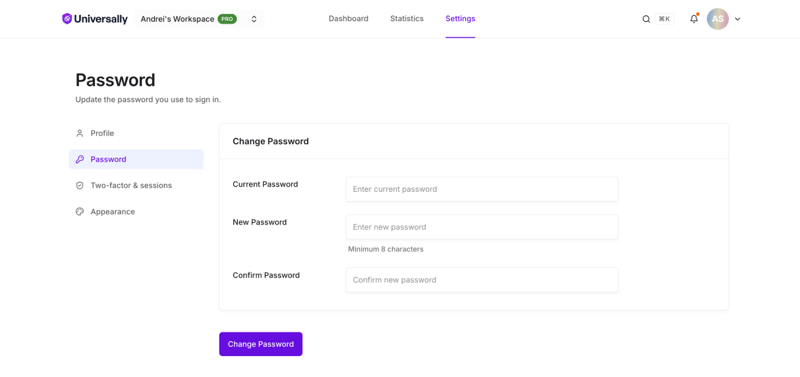
Change it from your profile
- Open the user menu and choose Account Settings, then Password.
- Enter your current password.
- Enter the new one. It must be at least 8 characters.
- Save.
Your current password is required even while signed in, so someone with access to an unlocked browser cannot lock you out of your own account.
If you signed up with Google
An account created with Sign up with Google has no password of its own. Signing in with Google is all it needs, so nothing is broken, and you can ignore this page entirely unless you want one.
You will want one if either of these applies:
- You would like to sign in with an email and password as well as with Google.
- You want to turn on two-factor authentication, which asks for your password before it will enable anything. See Two-factor authentication.
Use the reset flow to add one, not the form above: that form asks for a current password you do not have. Follow the steps in the next section, entering the email address on your Google account. Once the reset is done, both ways of signing in work.
Reset a forgotten password
- On the sign-in page, choose Forgot your password?.
- Enter your account email.
- Open the email and follow the link.
- Set a new password, again at least 8 characters.
The link works for 24 hours, and only once. Requesting a new one cancels the previous link, so if you have asked twice, use the newest email.
The reset email goes to the address on the account. If it does not arrive, check spam before requesting another, and confirm you are using the address you signed up with.
What a password change does not do
It does not sign out your other devices. Every device already signed in stays signed in until its session expires on its own. If you changed your password because someone else may have had it, revoke their sessions too. See Active sessions.
It does not disable two-factor authentication. You will still be asked for a code at the next sign-in. See Two-factor authentication.