
Translation Rules is one screen per project holding the four controls that change what gets translated and how URLs are built. Every field takes one entry per line, and all four are optional.
Before you start
- You need Owner, Admin, or Editor. Members do not see Translation Rules in the sidebar, and opening the URL directly shows an access-denied message.
- Open the project and choose Translation Rules in the sidebar.
The four fields
| Field | What it does |
|---|---|
| Include CSS Selectors | No effect on what is translated. Everything that holds text is already translated, so there is nothing for this field to add. |
| Exclude CSS Selectors | Skip elements matching these selectors. The rest of the page is translated as usual. |
| Exclude Pages | Skip whole URL paths. A visitor requesting a translated version is redirected to the original page. |
| Exclude Link Localization | Stop the language code being inserted into these internal paths, so the link points at the original URL. |
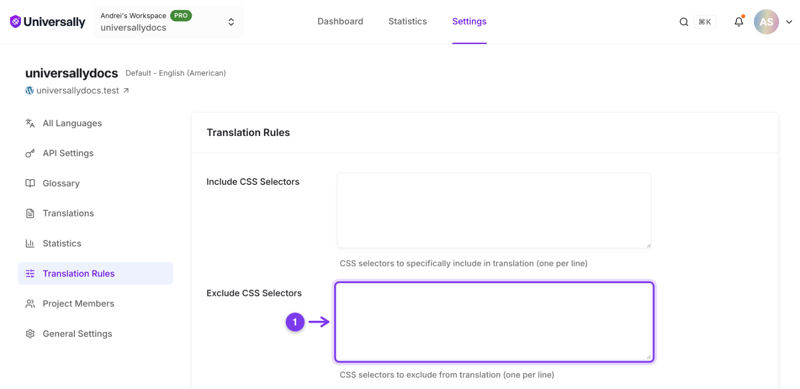
Changes are stored when you choose Save Rules.
Writing selectors
Two rules apply to both selector fields, and getting either wrong fails quietly.
Every entry needs a class, an id, or an attribute. .price-note, #hero-subheading and [data-no-translate] are all fine. A bare tag name like code, main or p is discarded, as is * and any entry of 200 characters or more. Nothing tells you, and a discarded entry never applies.
Target the element that holds the text, not the region that holds the page. .product-title is a selector. .content, #page and .entry-content are page regions, and excluding one of those excludes everything inside it: a single .content entry leaves an entire page in the source language, with nothing reported. There is no way to bring part of an excluded element back.
If what you want untranslated is a word or a phrase rather than an element, a selector is the wrong tool. See Glossary rules.
Include CSS Selectors
Leave this field empty. Universally translates every element that holds text, so an include selector has nothing to add, and filling the field in does not narrow translation to what you list.
If you want only one region of a page translated, exclude the rest with Exclude CSS Selectors. That is the only control that changes the boundary.
Exclude CSS Selectors
The common case. Name the parts of the page that should stay in the source language.
.brand-name
.code-block
.user-generated-content
[data-no-translate]
Matching elements are removed before translation, so nothing inside them is sent. That makes this the right control for anything sensitive as well as anything that must not change.
For a single word or phrase rather than a region, use a glossary rule instead. See Glossary rules.
Exclude Pages
Paths listed here are never translated, and a visitor who requests the translated URL lands on the original page.
/checkout/
/admin/*
/my-account/
* matches the rest of the path, so /admin/* covers everything beneath it. Checkout, account, and admin flows are the usual entries: they contain personal data and they break in ways that are hard to notice if the markup shifts.
Full detail is in Exclude pages.
Exclude Link Localization
On a translated page, internal links normally gain the language code so a visitor stays in their language. Paths listed here keep their original URL.
/wp-content/
/api/
/feed/
Use it for anything that is not a page a visitor reads: asset paths, API endpoints, feeds, and any route that would break with a language prefix in front of it.
Full detail is in Exclude paths from language prefixing.
When rules take effect
Saving stores the rules immediately, but pages already translated and cached keep their existing translation until it is refreshed. See Clear cache and refresh translations.
If a rule does not seem to work
Check the selector matches. Inspect the element in your browser and confirm the selector actually selects it. A selector that matches nothing fails silently.
Check for a cached page. A rule cannot change a translation that was cached before you added it.
Check you edited the right project. Rules are per project, not per workspace.